Migrate OpenClaw's Telegram Bot to Hermes

 +
+In Part 1 you self-hosted Hermes with persistent memory. This part connects it to the same Telegram bot from the OpenClaw series — the chat your users already know keeps working exactly as it did, just a different agent answering underneath. No new bot to announce, no channel to migrate people to.
Continues on the same WEC Instance as Part 1. Hermes gateway is already installed and running as a systemd user service — this part is configuration, not installation. Every command and error below is from the actual run.
Why keep the same bot
Self-hosting is only worth the effort if it doesn't lock you into whatever agent you started with. The bot itself — its name, its chat history, the people who already talk to it — is the asset. The agent behind it is replaceable. Swapping OpenClaw for Hermes on the same bot proves that: same Telegram front door, same conversation thread, new brain.
Prerequisites
- Hermes running from Part 1, gateway installed as a systemd service.
- A Telegram bot token. Reuse the one from the OpenClaw Telegram tutorial via @BotFather → /mybots → your bot → API Token — or create a fresh one with /newbot if you don't have the old one handy. Either way, the steps below are identical.
Step 1 — Run the setup wizard
hermes gateway setup
Pick Telegram from the platform list, then choose how to connect it:
◆ Telegram
  How would you like to create your Telegram bot?

    [1] Automatic (recommended)
        Scan a QR code → confirm in Telegram → done.
        No token copy-paste needed.

    [2] Manual
        Create a bot via @BotFather yourself and paste the token.

Choice [1/2] [1]: 2
  Create a bot via @BotFather on Telegram
Telegram bot token: **********************************************
✓ Telegram token saved
Take option 2 — option 1 spins up a brand new bot via QR code, which defeats the point if you're reusing an existing one.
Step 2 — Open access (and a real gotcha)
Next the wizard asks who's allowed to use the bot:
🔒 Security: Restrict who can use your bot
   To find your Telegram user ID:
   1. Message @userinfobot on Telegram
   2. It will reply with your numeric ID (e.g., 123456789)

Allowed user IDs (comma-separated, leave empty for open access):
If you don't have your ID handy, leave it blank and move on — you can lock this down later. But the prompt is misleading: leaving it empty doesn't open access by default. The gateway logs told the real story after restart:
WARNING gateway.run: No user allowlists configured. All unauthorized users
will be denied. Set GATEWAY_ALLOW_ALL_USERS=true in ~/.hermes/.env to allow
open access, or configure platform allowlists (e.g.,
TELEGRAM_ALLOWED_USERS=your_id).
An empty allowlist means deny everyone, not open access. If you want open access (fine for a personal bot, not for anything public-facing), you need one more step:
echo 'GATEWAY_ALLOW_ALL_USERS=true' >> ~/.hermes/.env
The wizard also asks for a Home Channel — where Hermes delivers cron
results and cross-platform messages. Leave it blank too; you can set it later
from inside the chat with /sethome.
Finish the wizard and let it restart the gateway:
Restart the gateway to pick up changes? [Y/n]: Y
✓ User service restarted
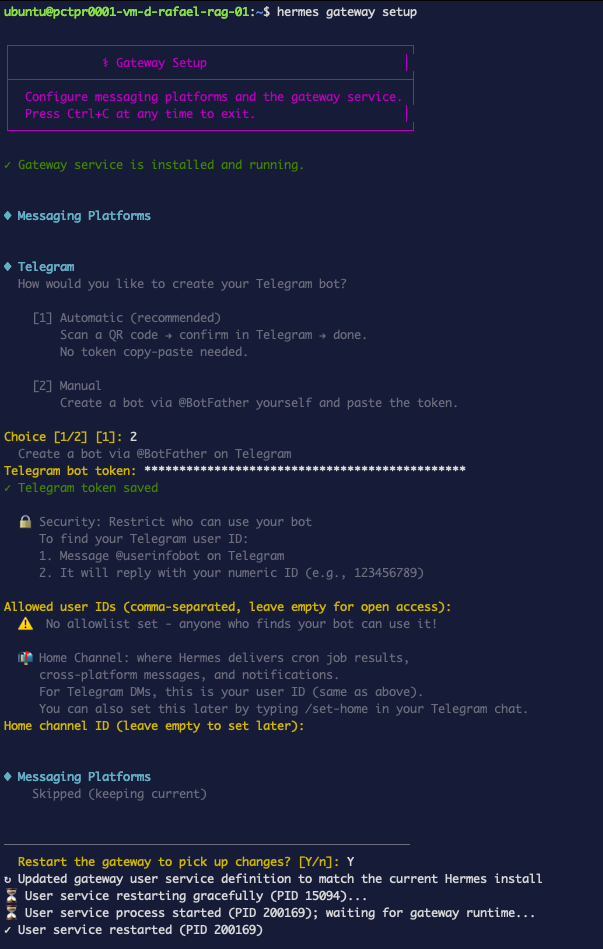 Figure 1. The whole wizard, start to finish — token, the allowlist warning, and the restart.
If you added GATEWAY_ALLOW_ALL_USERS after the wizard already restarted
once (as above), restart again so it picks up the .env change:
systemctl --user restart hermes-gateway.service
Step 3 — Verify
Message your bot. Not @BotFather — your bot, by the username you gave it when you created it. It's an easy mix-up: BotFather answers everything with its own fixed command menu, so if you see that instead of a real reply, you're in the wrong chat.
The first message may get a system nudge instead of a chat reply — that's Hermes noticing there's no home channel yet, not a failure:
📬 No home channel is set for Telegram. A home channel is where Hermes
delivers cron job results and cross-platform messages.

Type /sethome to make this chat your home channel, or ignore to skip.
Send another message and it answers for real:
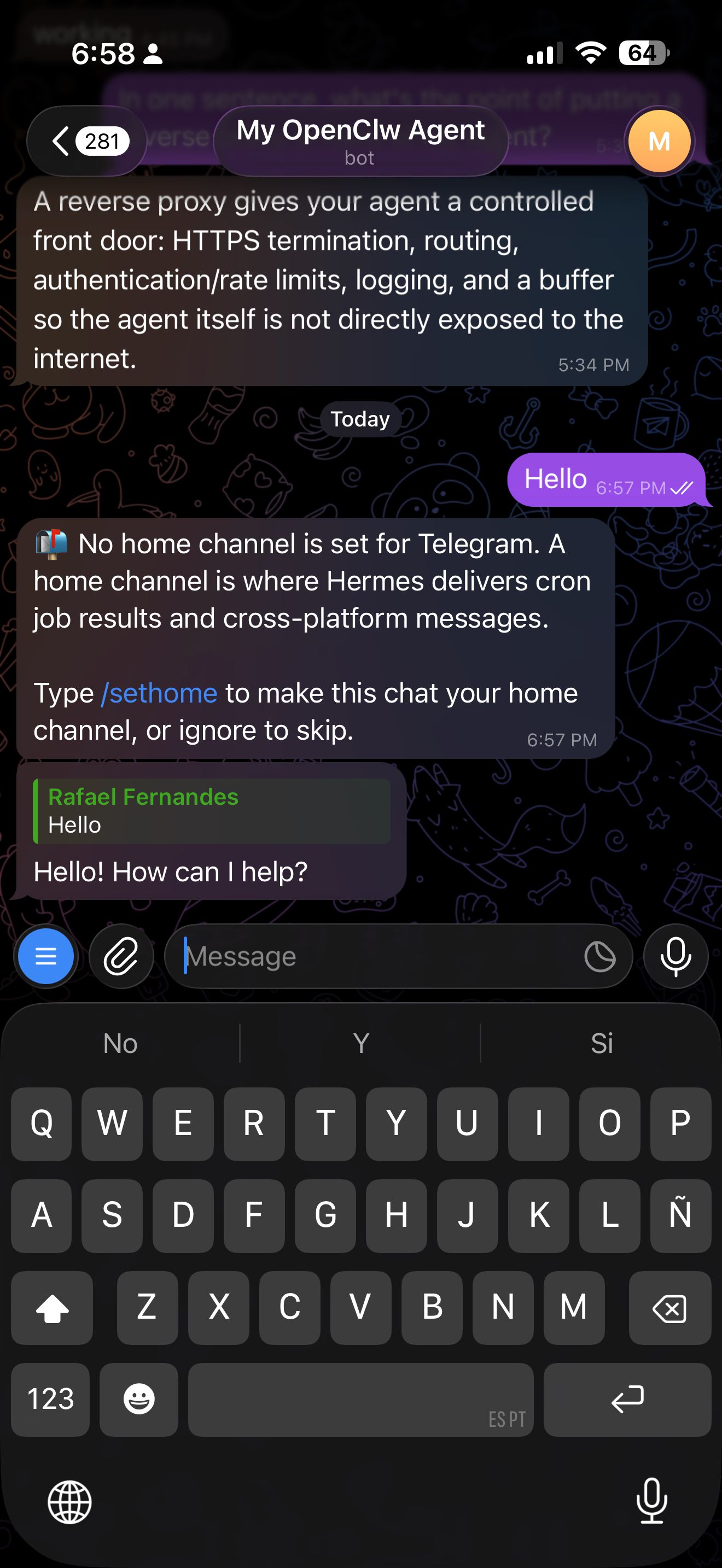 Figure 2. The same bot from the OpenClaw series, now answering through Hermes.
Ask it something with actual depth, and it delivers a real, structured answer — not just a canned reply:
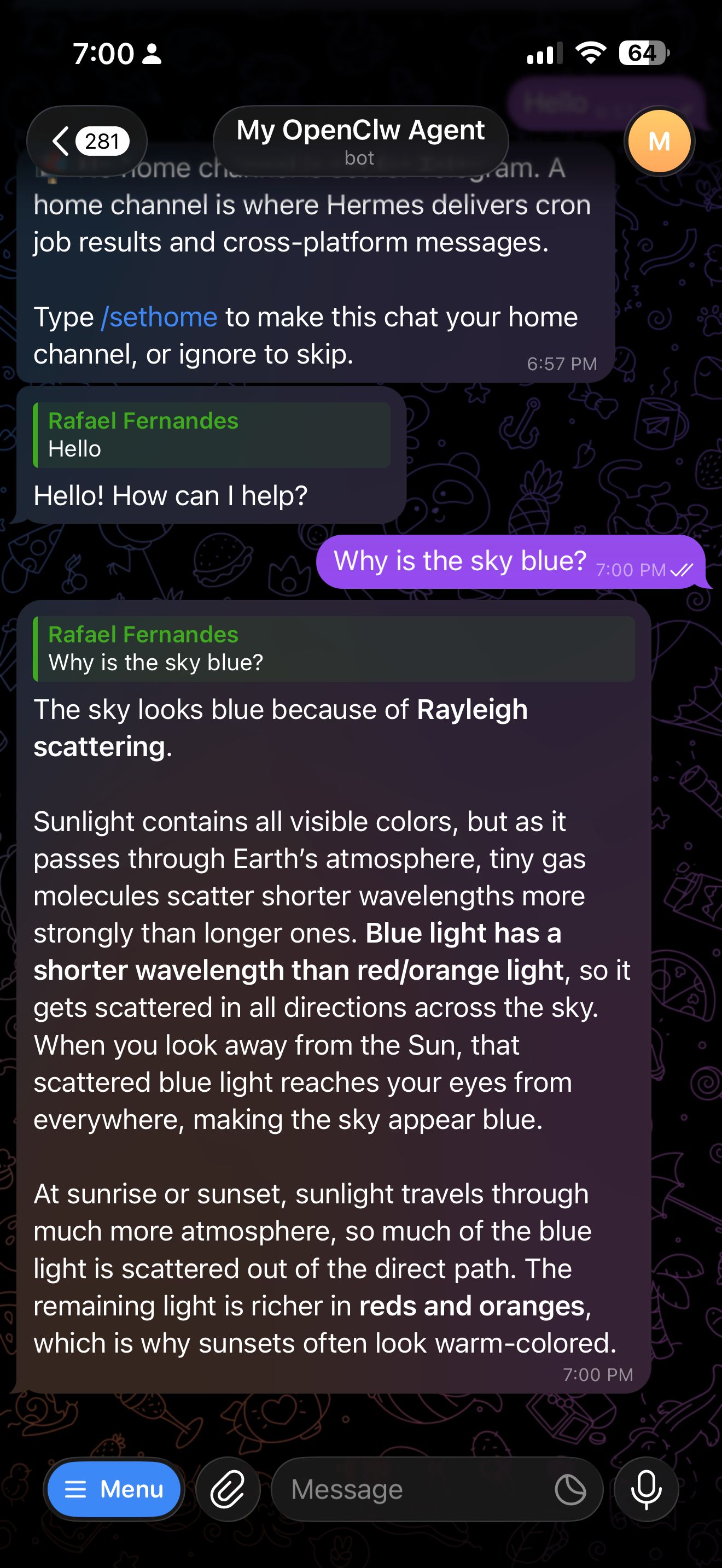 Figure 3. Same agent, a real question — full explanation, not a one-liner.
Same bot, same chat history, new agent.
Troubleshooting (real)
"No user allowlists configured. All unauthorized users will be denied." —
leaving the allowlist prompt empty does not mean open access; it means
deny-all. Set GATEWAY_ALLOW_ALL_USERS=true in ~/.hermes/.env and restart
the gateway.
"Telegram polling conflict... make sure that only one bot instance is running" — shows up for a few seconds right after a restart, while Telegram's servers finish releasing the previous session. It retries and clears on its own within 20 seconds; no action needed unless it keeps repeating past the 5th retry, which means another process really is polling the same token.
Bot doesn't respond at all — check you're messaging the bot itself, not @BotFather. BotFather always answers with its own command list regardless of what you send it.
What's next
The bot answers — next is putting it on a schedule: a morning briefing or a service-health check delivered to this same chat, no polling required.