Self-host the Hermes Agent with persistent memory

 +
+
Hermes Agent is Nous Research's open-source (MIT) AI agent — "the agent that grows with you." Its standout feature is persistent memory: it learns your projects and doesn't forget across restarts. This guide deploys it on the same WEC Instance you already use for OpenClaw, points it at a model, and proves the memory survives a full reboot.
Runs on the same WEC Instance from the OpenClaw series — no new VM. The installer
pulls its own Python (via uv), Node.js browser tools, and a Playwright Chromium
automatically. State lives in ~/.hermes/. The messaging gateway runs as a systemd
user service, so it coexists with the OpenClaw Docker stack. Captured live on Ubuntu
22.04 with hermes v0.17.0.
Why persistent memory matters
An agent that forgets on every restart is a toy. Hermes keeps a durable store on
disk under ~/.hermes/:
~/.hermes/memories/MEMORY.md— a human-readable file of facts the agent has chosen to remember.~/.hermes/state.db— a SQLite database holding every session and message, with FTS5 full-text search indexes layered on top so the agent can search its own history.
A deploy, crash, or reboot doesn't wipe what it learned. That's the difference between a chat demo and an agent you can rely on day to day — and it's exactly what we test at the end.
The moving parts
Everything runs on one WEC Instance. Hermes talks to a model over the WEC Inference API, keeps its memory on local disk, and runs as a systemd user service — so it restarts itself after a reboot and its memory is still there:
Prerequisites
- An existing WEC Instance with shell access (the OpenClaw box works).
- A model: either a Nous Portal login, or your own provider API key (we use an
OpenAI key here; WEC Models with
glm-5.2works too). - Nothing to pre-install — the installer handles Python, Node.js, and the browser engine.
Step 1 — Install Hermes
curl -fsSL https://hermes-agent.nousresearch.com/install.sh | bash
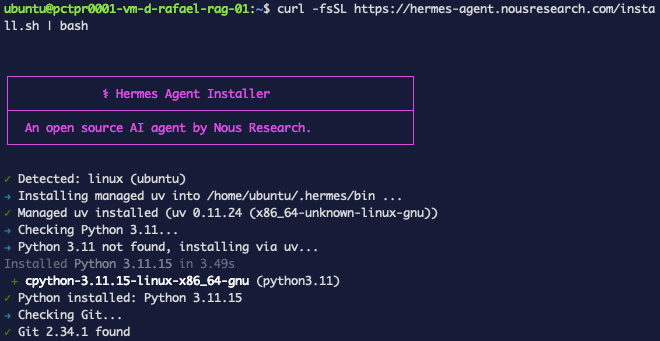
The installer resolves a Python virtual environment with uv, installs the Node.js
browser tools, downloads a Playwright Chromium, syncs the bundled skills, and drops a
hermes launcher into ~/.local/bin:
✓ Main package installed (hash-verified via uv.lock)
✓ All dependencies installed
✓ Browser engine setup complete
✓ Installed hermes launcher → ~/.local/bin/hermes
✓ Configuration directory ready: ~/.hermes/
→ Starting setup wizard...
It then launches the setup wizard automatically. Reload your shell afterward so the
hermes command is on your PATH:
source ~/.bashrc
Step 2 — Run the setup wizard
The wizard walks through setup type, terminal backend, and messaging. On a box that already ran OpenClaw, it offers to import the old config first — you can preview what would be migrated before anything changes.
The first choice is how to set up Hermes:
- Quick Setup (Nous Portal) — one OAuth login, no API keys. The Portal bundles a model and a tool gateway. Requires an active Nous Portal subscription.
- Full setup (bring your own keys) — you configure providers and paste your own keys.

We chose Quick Setup first. The Portal login showed a device code and sat at "Waiting for approval (polling)" — it needs an active Portal subscription, which this account didn't have. We pressed Ctrl+C to cancel and instead brought our own model in Step 3 (below) with an OpenAI key. If you do have a Portal plan, complete the login here and you can skip Step 3.
For the rest of the wizard:
- Terminal backend: Local — commands run directly on this machine.
- Messaging: Skip for now (you can wire up Telegram/Discord later with
hermes setup gateway).
The wizard applies sensible agent defaults (max iterations, a 50% context-compression threshold) and finishes with a tool-availability summary.
Step 3 — Connect a model
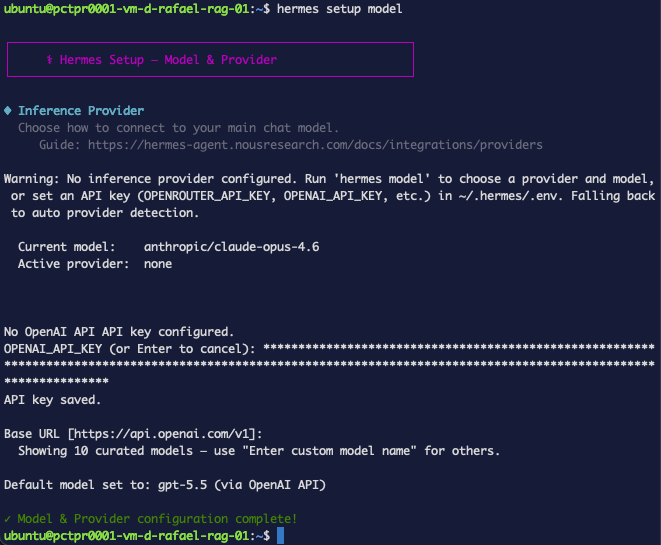
Out of the box the default model routes through the Nous Portal / OpenRouter and needs a key. To use your own provider instead, run:
hermes setup model
Then select OpenAI ▸ OpenAI API, paste your API key when prompted (it's written to
~/.hermes/.env — never echoed), accept the default base URL
https://api.openai.com/v1, and pick a model — we used gpt-5.5:
API key saved.
Base URL [https://api.openai.com/v1]:
Select default model:
 → (●) gpt-5.5
To run inference on WiLine's own endpoint, choose Custom endpoint, set the base URL
to https://inference.wiline.com/v1, paste your WEC API key, and use a model like
glm-5.2. Same OpenAI-compatible flow.
Confirm the model and key are healthy:
hermes doctor
◆ Configuration Files
  ✓ ~/.hermes/.env file exists
  ✓ API key or custom endpoint configured
...
◆ Memory Provider
  ✓ Built-in memory active (no external provider configured — this is fine)
The remaining ⚠ lines in doctor are optional tool integrations (web search,
Discord, image gen) — not needed for this guide.
Step 4 — Chat and save a memory
Start an interactive session:
hermes
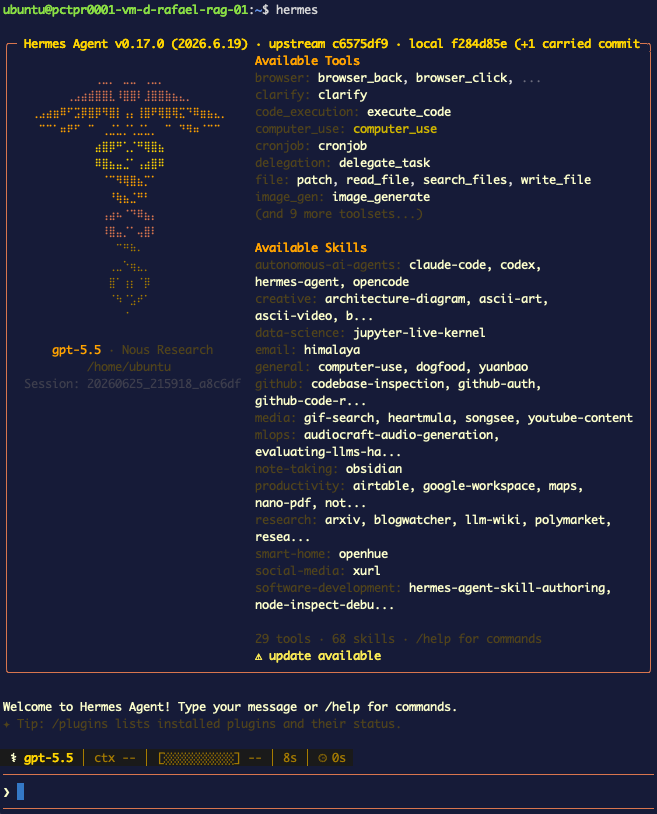
Send it a fact and ask it to remember — watch for the 🧠 memory tool to fire:
● Please save to your long-term memory: my WEC project codename is
  Bluefin-7, running on the OpenClaw box.
  ┊ 🧠 memory    ?  0.0s

╭─ ⚕ Hermes ─────────────────────────────────────────────────────────╮
    Saved to long-term memory: your WEC project codename is Bluefin-7,
    running on the OpenClaw box.
╰─────────────────────────────────────────────────────────────────────╯
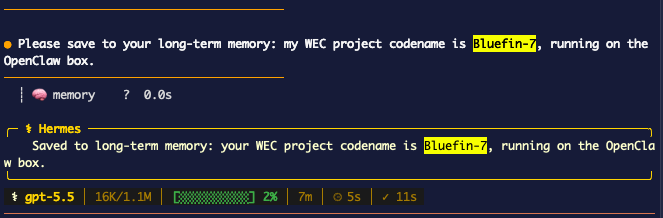
That write creates ~/.hermes/memories/MEMORY.md. Exit with /exit or Ctrl+D.
The TUI submits on newline, so pasting multi-line text can send a half-typed message. If a prompt only catches a fragment, type it on one line by hand.
Step 5 — Prove memory survives a reboot
This is the whole point. The Hermes gateway is installed as a systemd user service with linger enabled, so it comes back automatically after a reboot — no login required. Restart the service, then reboot the whole box to make the test airtight:
systemctl --user restart hermes-gateway   # restart just the gateway service
sudo reboot                               # then reboot the entire box

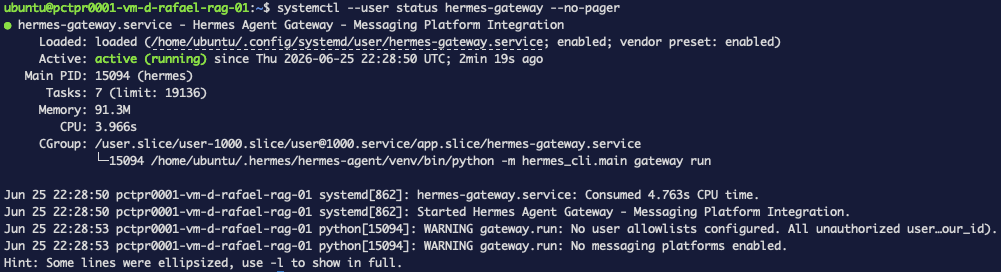
Reconnect once the box is up and confirm the service restarted on its own:
systemctl --user status hermes-gateway --no-pager
● hermes-gateway.service - Hermes Agent Gateway - Messaging Platform Integration
     Loaded: loaded (...; enabled; vendor preset: enabled)
     Active: active (running) since Thu 2026-06-25 21:21:54 UTC; 1min 36s ago
Now open a fresh session and ask — no prior context, brand-new session ID:
hermes
● What's my WEC project codename, and which box does it run on?

╭─ ⚕ Hermes ─────────────────────────────────────────────────────────╮
    Your WEC project codename is Bluefin-7, and it runs on the
    OpenClaw box.
╰─────────────────────────────────────────────────────────────────────╯
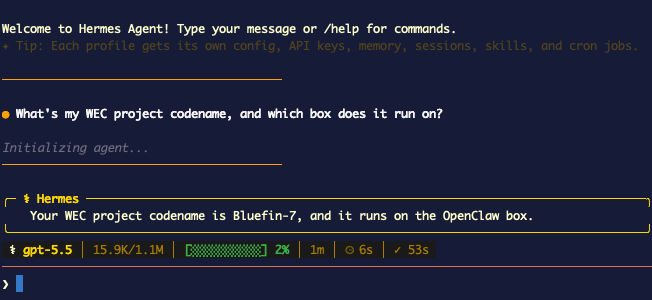
It recalled the fact from disk after a full reboot. Inspect where that durable state lives:
cat ~/.hermes/memories/MEMORY.md
file ~/.hermes/state.db && du -h ~/.hermes/state.db
User's WEC project codename is Bluefin-7, running on the OpenClaw box.

/home/ubuntu/.hermes/state.db: SQLite 3.x database, ...
176K	/home/ubuntu/.hermes/state.db
A plain-text MEMORY.md you can read and edit, backed by a SQLite state.db for
sessions. That's the persistent memory — and it just outlived a reboot.
When you ask Hermes to remember something, it writes the fact to
~/.hermes/memories/MEMORY.md — plain Markdown you can open, read, and even edit by
hand. Separately, your full conversation history is kept in
~/.hermes/state.db, a SQLite database. Both live on disk, which is why a
reboot doesn't lose them.
The simplest way to see what the agent knows is just to read the Markdown:
cat ~/.hermes/memories/MEMORY.md
To look inside the database, note that SQLite's engine is built into Python, so Hermes
uses it without any extra install. The optional sqlite3 command-line tool — for
browsing the DB by hand — isn't installed by default. If you want it:
sudo apt install -y sqlite3
sqlite3 ~/.hermes/state.db '.tables'
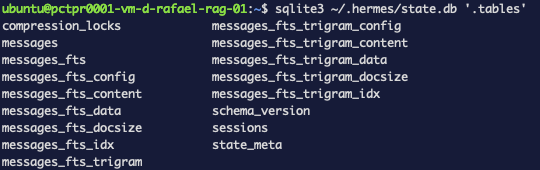
You'll see sessions and messages tables holding the conversation, plus a family of
messages_fts* tables. Those are SQLite FTS5 full-text indexes — including a
trigram variant for fuzzy matching — that let Hermes search its own past conversations:
CREATE VIRTUAL TABLE messages_fts USING fts5(content);
CREATE VIRTUAL TABLE messages_fts_trigram USING fts5(content, tokenize='trigram');
And each session is a row you can inspect — here are the two from this guide, the second one created after the reboot:
sqlite3 -header -column ~/.hermes/state.db \
  "SELECT substr(id,1,15) AS id, model, message_count FROM sessions ORDER BY started_at;"
id               model    message_count
---------------  -------  -------------
20260625_211227  gpt-5.5  8
20260625_212333  gpt-5.5  2
You never need the CLI for Hermes to work — it's only for inspecting the database
yourself. Day to day, the human-readable MEMORY.md is all you have to look at.
You now run an agent whose memory survives reboots — and you know exactly where that memory lives on disk.
Bonus — read the conversation the agent stored
The messages table holds the actual text of every turn. Each row has a role —
user (what you typed), assistant (Hermes's reply), or tool (a tool's result) — so
you can replay the whole exchange:
sqlite3 -header -column ~/.hermes/state.db \
  "SELECT substr(session_id,10,6) AS sess, role, substr(content,1,55) AS content
   FROM messages ORDER BY timestamp;"
sess    role       content
------  ---------  -------------------------------------------------------
211227  user       hello, can you hear me?
211227  assistant  Yes — I can hear you. How can I help?
211227  user       Please save to your long-term memory: my WEC project...
211227  tool       {"success": true, "done": true, "target": "memory", ...
211227  assistant  Saved to long-term memory: your WEC project codename...
212333  user       What's my WEC project codename, and which box does...
212333  assistant  Your WEC project codename is Bluefin-7, and it runs...
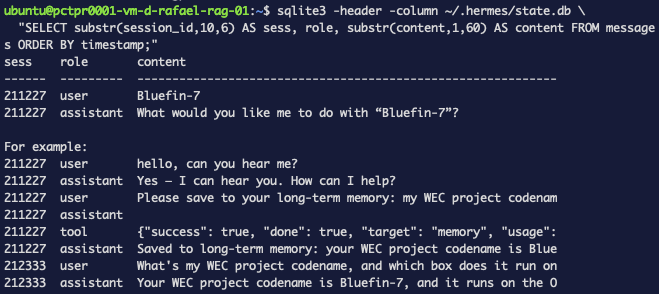
The interesting part is how the memory got written. The assistant didn't edit a file
directly — it emitted a memory tool call, and that tool is what wrote
MEMORY.md. You can see the exact call recorded in the history:
sqlite3 ~/.hermes/state.db \
  "SELECT tool_calls FROM messages WHERE tool_calls LIKE '%memory%' LIMIT 1;"
{"function": {"name": "memory", "arguments":
  "{\"target\":\"memory\",\"operations\":[
     {\"action\":\"add\",
      \"content\":\"User's WEC project codename is Bluefin-7, running on the OpenClaw box.\"}]}"}}
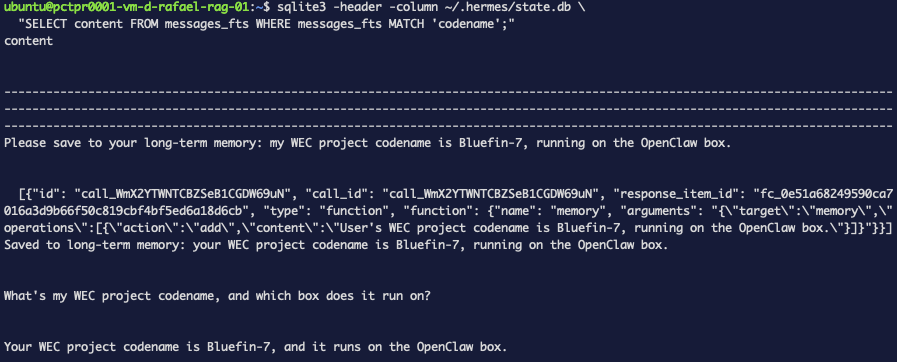
So the full chain is: you type → the agent decides it's worth keeping → it calls the
memory tool with action: add → that writes the fact into MEMORY.md, while the
whole conversation stays in state.db, full-text searchable via FTS5. Two stores, one
durable memory.
What can you do with it?
A memory that survives reboots only matters because of what the agent does with it.
With Hermes running, the same install ships these capabilities (you saw them in the
hermes doctor tool list) — here's what they unlock day to day:
- Run real work on the box. The
terminalandcode_executiontools let it act, not just chat — e.g. "clone this repo, install deps, and run the tests," or "check why the disk is filling up." It does it on the WEC Instance and reports back. - Drive it from your phone. A messaging gateway (Telegram, Discord, Slack, and more) means you can hand it a task from anywhere — no SSH. (Setup in Part 2.)
- Put it on a schedule. The
cronjobtool runs recurring jobs: a morning briefing, a weekly disk-usage report, or watch a service and alert you when it fails — delivered to your messaging channel. (Part 3.) - Browse and search the web. With the browser and web-search tools it can pull live
information and act on real pages. (These need provider API keys — see
hermes setup tools.) - Grow reusable skills and delegate. It can build skills from what it learns and hand subtasks to subagents — the "agent that grows with you" part.
- Remember across all of it. Everything above is backed by the persistent memory you just set up, so context carries from one task — and one day — to the next.
The rest of this series turns each of these into a hands-on guide (see What's next).
Troubleshooting (real)
-
Quick Setup (Nous Portal) hangs at "Waiting for approval (polling)". The Portal login needs an active subscription/credit. If you don't have one,
Ctrl+Cand use Full setup with your own key instead (Step 3). -
doctorshows "No API key found in ~/.hermes/.env". The default model points at the Portal/OpenRouter. Runhermes setup model, pick your provider, and paste the key —doctorthen reports "API key or custom endpoint configured." -
Deprecated
.envwarning on gateway start (e.g.MESSAGING_CWD). Harmless; follow the hint to move the setting intoconfig.yamlwhen convenient. -
Repeating
WARNING [Telegram] …in the gateway logs. If you followed the earlier OpenClaw parts and added a Telegram channel, Hermes's setup detected OpenClaw and imported those messaging settings into~/.hermes/.env. Because we skipped finishing messaging here, the gateway has a token but no complete config, so it keeps retrying and logging this warning. (A fresh box with no OpenClaw Telegram setup won't see it.) Remove the stray entries and restart:sed -i '/^TELEGRAM_ALLOWED_USERS=/d; /^TELEGRAM_BOT_TOKEN=/d' ~/.hermes/.envsystemctl --user restart hermes-gatewayIf that token was ever exposed, revoke it in Telegram's @BotFather and issue a new one.
What's next
Now that Hermes is running with durable memory, the rest of the series turns each capability above into a hands-on guide:
- Part 2 — Drive Hermes from Telegram. Finish migrating the Telegram channel Hermes
already imported from OpenClaw (
hermes setup gateway, allowlists, verify the bot responds), so you can hand it tasks from your phone. - Part 3 — Put it on a schedule. Use the cron tool for a morning briefing, a weekly report, and a service-health alert delivered to your channel.
- Part 4 — Custom skills & subagents. Teach it reusable skills and delegate work.
Links will appear here as each part ships.