Secure OpenClaw with a Caddy reverse proxy + HTTPS
 +
+In Article 1 we got OpenClaw running —
but only over plain HTTP, with an allowInsecureAuth workaround. Here we put
Caddy in front of it as a reverse proxy: real HTTPS,
device-paired auth, and the gateway's raw ports closed so the proxy is the only
way in. Every command and error below is from the actual deploy.
Continues from Article 1 on the same WEC Instance — Ubuntu 22.04.5 LTS, OpenClaw
2026.6.8. We use Caddy 2 (caddy:2). Because this box has no public domain,
we use Caddy's internal CA (tls internal) for self-signed HTTPS; the
Going to production section shows the one-line swap to real
Let's Encrypt certificates once you have a domain.
What you'll build
Caddy terminates HTTPS and reverse-proxies to the OpenClaw gateway over Docker's
internal network. The gateway stops publishing its own ports — the only entry
point becomes Caddy on :443.
Prerequisites
- Article 1 completed — OpenClaw running in
~/openclaw - Shell access to the VM
- A hostname for the gateway. With a public domain, use it (and get real
Let's Encrypt certs). On a private box, we use
openclaw.local+ a hosts entry.
Step 1 — Confirm the starting point
cd ~/openclaw
docker compose ps
You should see openclaw-gateway Up (healthy), publishing 18789/18790/3978.
That's our starting state: working, but HTTP-only.

Step 2 — Write the Caddyfile
Caddy's config: serve HTTPS and proxy everything to the gateway. tls internal
uses Caddy's own local CA — no public domain needed.
cat > Caddyfile <<'EOF'
# Caddy selects its certificate by SNI (the hostname in the TLS handshake).
# A bare IP sends no SNI, so we use a hostname. With a public domain, put your
# domain here and drop `tls internal` for automatic Let's Encrypt.
openclaw.local {
    tls internal
    reverse_proxy openclaw-gateway:18789
}
EOF
The proxy target is openclaw-gateway:18789 — Caddy reaches the gateway by its
Compose service name over the shared Docker network.
Step 3 — Add Caddy to Compose
docker compose auto-merges a docker-compose.override.yml, so we add a caddy
service without touching OpenClaw's official compose file:
cat > docker-compose.override.yml <<'EOF'
services:
  caddy:
    image: caddy:2
    restart: unless-stopped
    ports:
      - "80:80"
      - "443:443"
    volumes:
      - ./Caddyfile:/etc/caddy/Caddyfile:ro
      - caddy_data:/data
      - caddy_config:/config

volumes:
  caddy_data:
  caddy_config:
EOF
caddy_data persists the local CA + certs across restarts.
Step 4 — Start Caddy
docker compose up -d
docker compose ps
Caddy comes up alongside the gateway with 443 published, and generates its
internal CA + a certificate on first run.
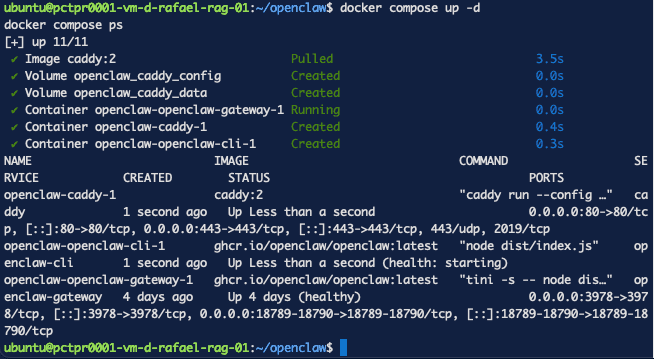
docker compose up -d also starts the one-shot openclaw-cli helper; it idling
here is harmless — we invoke it with docker compose run --rm when needed.
Step 5 — Verify HTTPS
Hit the gateway's health endpoint through Caddy. --resolve makes curl send
the hostname (SNI) while pointing at the box:
curl -k --resolve openclaw.local:443:127.0.0.1 https://openclaw.local/healthz
# {"ok":true,"status":"live"}

tlsv1 alert internal error?That happens if you used a bare IP as the site address — see Troubleshooting #1. Use a hostname.
Step 6 — Re-secure the gateway
Now traffic arrives over https://openclaw.local. Two config changes:
- Add the HTTPS origin to
allowedOrigins(the Control UI rejects unknown origins). - Turn
allowInsecureAuthback off — HTTPS is a secure context, so the Article 1 workaround is no longer needed.
docker compose run --rm --no-deps --entrypoint node openclaw-gateway \
  dist/index.js config set --batch-json '[{"path":"gateway.controlUi.allowedOrigins","value":["https://openclaw.local"]},{"path":"gateway.controlUi.allowInsecureAuth","value":false}]'

docker compose restart openclaw-gateway
Step 7 — Pair your browser
Open https://openclaw.local/ in your browser (on a private box, first map
10.80.4.212 openclaw.local in your machine's hosts file — /etc/hosts on
macOS/Linux, or C:\Windows\System32\drivers\etc\hosts edited as Administrator
on Windows).
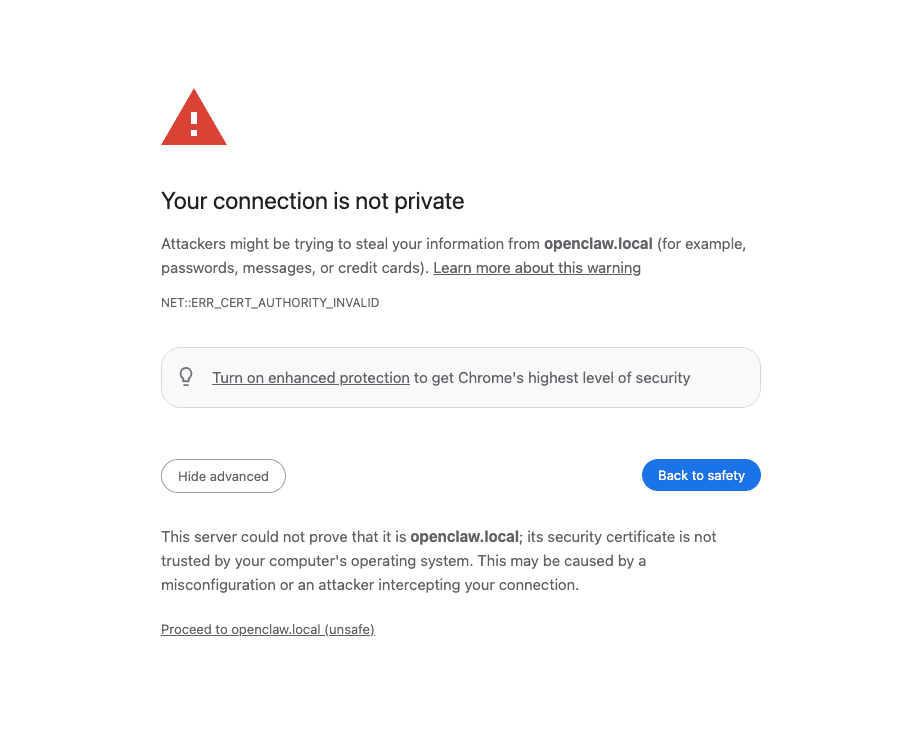
You'll hit a certificate warning first — "Your connection is not private"
(NET::ERR_CERT_AUTHORITY_INVALID). This is expected with tls internal: the
certificate is signed by Caddy's local CA, which your operating system doesn't
trust. Click Advanced → Proceed to openclaw.local (unsafe) to continue. (With a
real domain + Let's Encrypt, the certificate is publicly trusted and this warning
never appears — see Going to production.)
Now the page loads — but with allowInsecureAuth off, the gateway requires
device pairing before this browser can use the Control UI. That's the secure
flow doing its job. The screen shows a request id; approve it on the host:
docker compose run --rm openclaw-cli devices approve <request-id-from-the-screen>
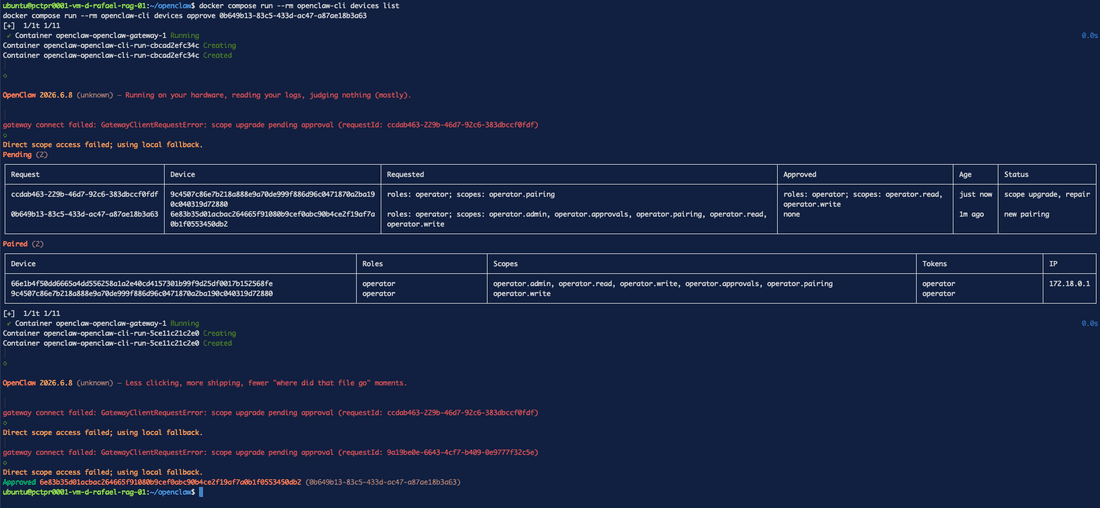
Back in the browser, click Connect again — it pairs and loads the dashboard.
Step 8 — Lock down direct access (the real hardening)
The gateway still publishes 18789 to the host, so http://<vm-ip>:18789 is
still reachable in plain HTTP, bypassing Caddy. Close it: stop publishing the
gateway's ports so Caddy on :443 is the only door. Caddy still reaches it over
the internal network.
cat > docker-compose.override.yml <<'EOF'
services:
  openclaw-gateway:
    # Unpublish the gateway's host ports — Caddy reaches it internally, so the
    # only entry point is HTTPS on :443.
    ports: !reset []

  caddy:
    image: caddy:2
    restart: unless-stopped
    ports:
      - "80:80"
      - "443:443"
    volumes:
      - ./Caddyfile:/etc/caddy/Caddyfile:ro
      - caddy_data:/data
      - caddy_config:/config

volumes:
  caddy_data:
  caddy_config:
EOF
docker compose up -d
ports: !reset [] clears the ports the base compose published.
Step 9 — Prove it's locked
curl -s -m 5 http://<vm-ip>:18789/healthz ; echo " <- direct HTTP (should FAIL)"
curl -sk --resolve openclaw.local:443:127.0.0.1 https://openclaw.local/healthz ; echo " <- via Caddy (should work)"
The first returns nothing (connection refused) — the insecure door is gone. The
second still returns {"ok":true,"status":"live"}.

Your OpenClaw is now reachable only over HTTPS, device-paired.
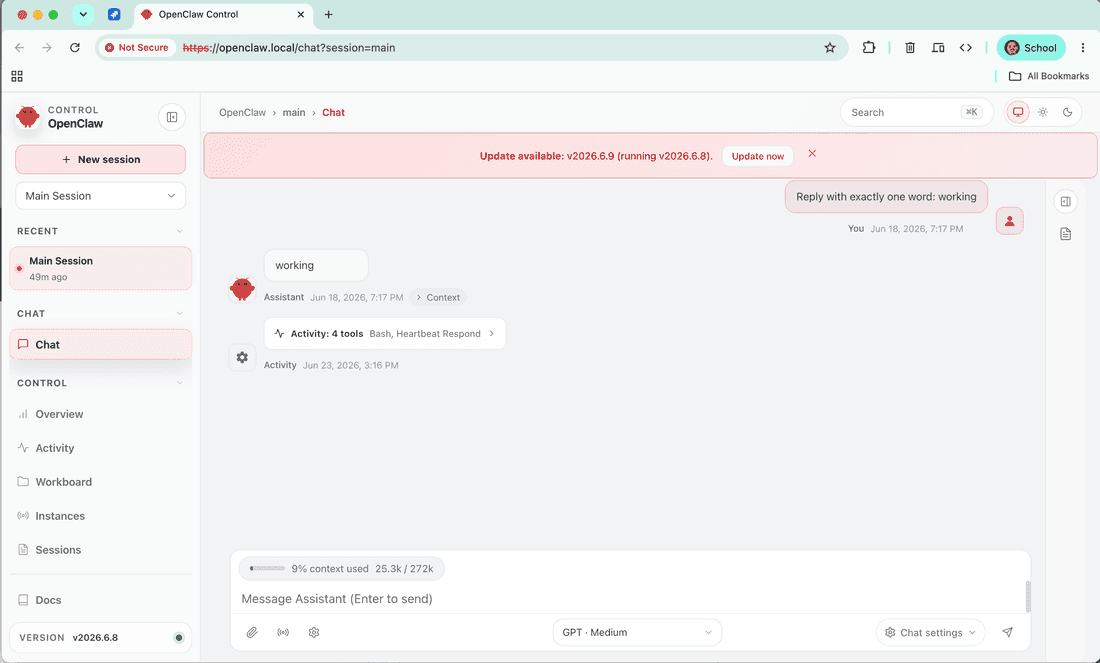
You can now put real HTTPS and auth in front of any self-hosted service — and prove the back door is closed.
Troubleshooting (real errors)
1. tlsv1 alert internal error
Hit when the Caddyfile site address was a bare IP (https://10.80.4.212):
curl: (35) error:0A000438:SSL routines::tlsv1 alert internal error
Caddy's logs showed the cert was obtained fine. Cause: TLS picks a certificate by SNI (the hostname in the handshake), but connections to a bare IP send no SNI — so Caddy can't match a cert and aborts. Fix: use a hostname site address (Step 2). A reader with a real domain never hits this — the domain is the SNI.
2. Device pairing required
On the first HTTPS connect after turning off allowInsecureAuth:
Device pairing required — This browser needs one-time approval from the Gateway
host before it can use the Control UI.
Cause: this is the correct secure flow — with insecure auth off, each new
browser must be approved. Fix: docker compose run --rm openclaw-cli devices approve <request-id>. (The CLI may log scope upgrade pending approval … using local fallback but still completes the approval.)
3. NET::ERR_CERT_AUTHORITY_INVALID
Expected with tls internal — the cert is signed by Caddy's local CA, which your
OS doesn't trust. Click through on a private box. With a public domain + Let's
Encrypt (below), the cert is trusted and there's no warning.
Going to production
With a real domain, swap two lines in the Caddyfile — point it at your domain and
drop tls internal:
- openclaw.local {
-     tls internal
+ openclaw.example.com {
      reverse_proxy openclaw-gateway:18789
  }
Then point the domain's DNS A record at the VM's public IP and open 80 + 443
to the internet. Caddy automatically provisions and renews a Let's Encrypt
certificate — trusted, no warning, no --resolve or /etc/hosts needed. Update
allowedOrigins to https://openclaw.example.com.
Security notes
- Single entry point — only Caddy's
:443is exposed; the gateway has no host ports (Step 8). - Device pairing — every browser needs one-time approval (
openclaw devices). - Origin allowlist — the Control UI only accepts
https://openclaw.local. - Rotate secrets — regenerate
OPENCLAW_GATEWAY_TOKENif it has ever been shown (screenshots, screen-shares).
What's next
You've finished Part 2 of the Self-hosting OpenClaw series. Next:
- Part 3 — Add a Telegram channel (next) — talk to your now-secured agent from your phone.
- Part 4 — Make OpenClaw private with a NetBird mesh VPN — put it on a private mesh and close the public ports.
Companion files (Caddyfile, docker-compose.override.yml) live in the WiLine
manifests repo (link coming with the repo).
Teardown
To remove just Caddy and reopen the direct ports, delete docker-compose.override.yml
and Caddyfile, then docker compose up -d. To stop everything:
docker compose down