Add a Telegram channel to OpenClaw
 +
+You've deployed OpenClaw and secured it behind HTTPS. Now make it usable — talk to your agent from your phone via Telegram. We create a bot, connect it, clear OpenClaw's pairing gate, and get a real reply. Every command and gotcha below is from an actual run.
Continues from Parts 1–2 on the same WEC Instance — OpenClaw 2026.6.8. Telegram uses polling (the gateway polls Telegram's API), so no public webhook or domain is required — this works on a private box.
What you'll build
Your phone talks to a Telegram bot; the OpenClaw gateway polls Telegram for messages, runs them through your model, and replies — no inbound ports needed.
Prerequisites
- Part 1 + Part 2 done — OpenClaw running in
~/openclaw - A Telegram account and a logged-in Telegram client — the phone/desktop app, or
web.telegram.org. (You can't create a bot from the publict.meweb page; see Troubleshooting.)
Step 1 — Create a Telegram bot
In the Telegram app, tap search and type BotFather, then open the official
account — the one with the blue checkmark.
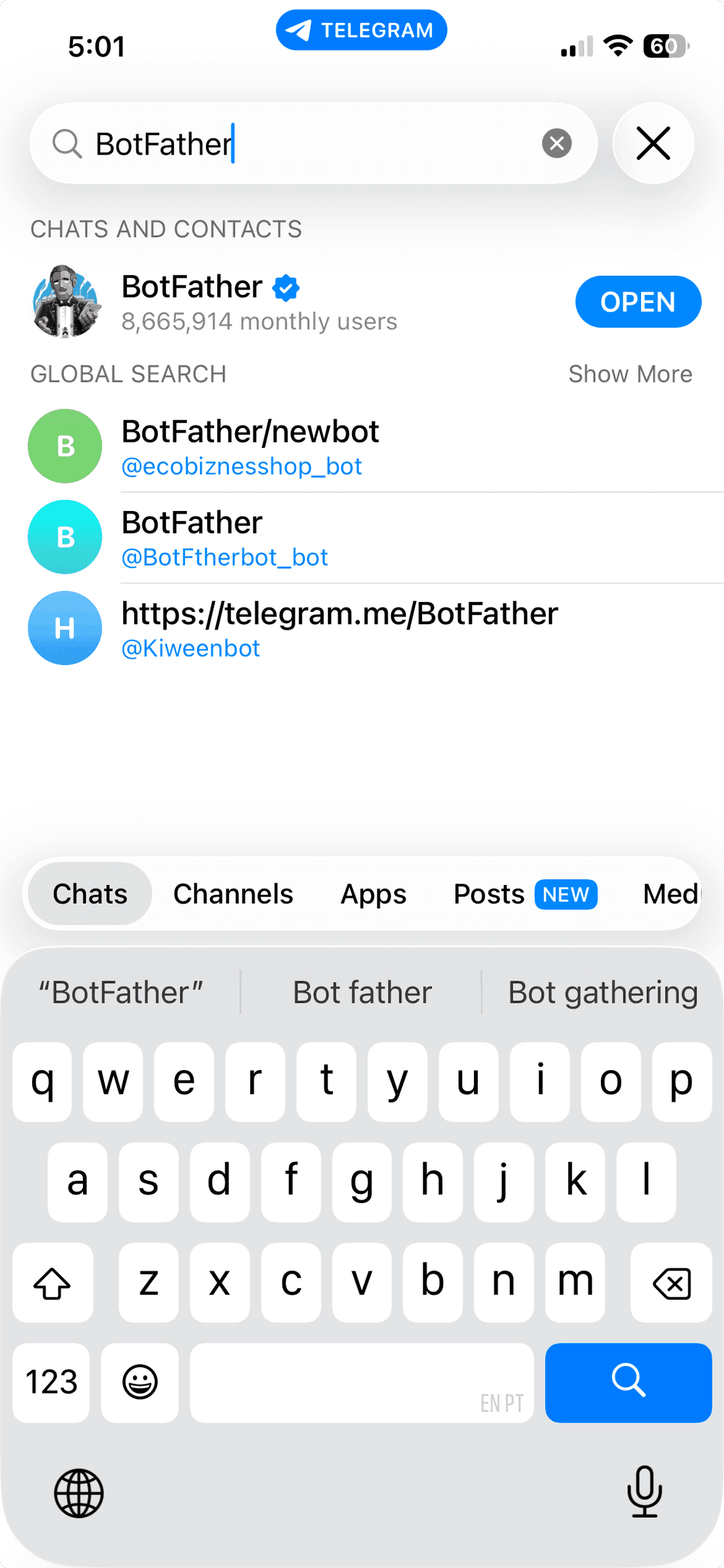
Tap Start — BotFather replies with the commands it understands (you'll see
options like /newbot, /mybots, /token, and more). Send /newbot, then
follow its two prompts:
- Name — a display name, e.g.
My OpenClaw Agent - Username — must be unique and end in
bot, e.g.wiline_openclaw_bot
BotFather confirms with "Done! Congratulations on your new bot" and gives you the
token — the line after Use this token to access the HTTP API:, like
1234567890:AA....
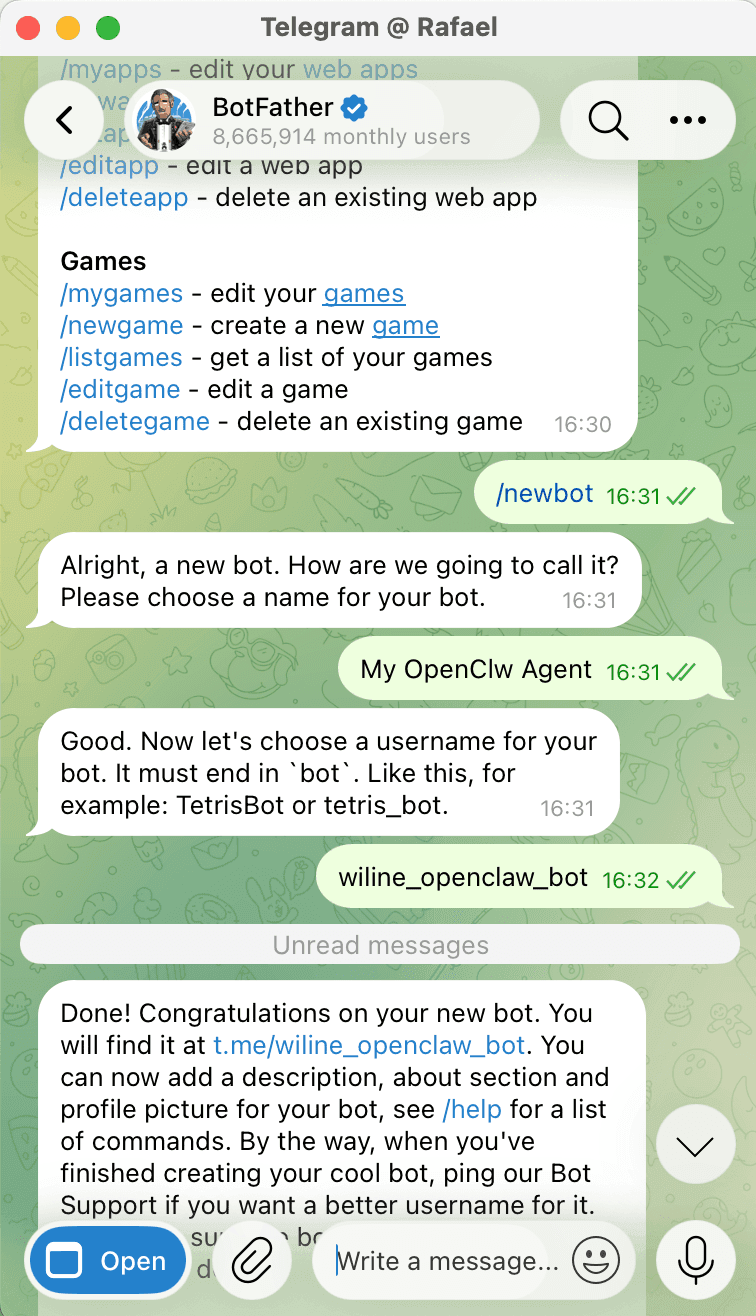
Anyone with it controls your bot. Blur it in the screenshot above, and /revoke
it in BotFather if it ever leaks.
Step 2 — Connect the bot to OpenClaw
On the VM, in ~/openclaw, register the channel with your token:
docker compose run --rm openclaw-cli channels add --channel telegram --token "<your-bot-token>"
# Added Telegram account "default".

Step 3 — Activate and verify
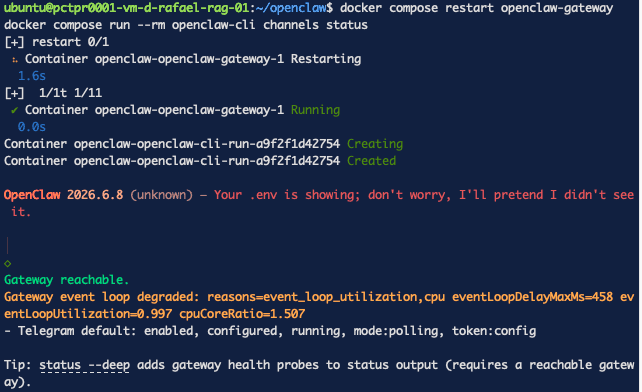
Restart the gateway so it picks up the channel, then check status:
docker compose restart openclaw-gateway
docker compose run --rm openclaw-cli channels status
# - Telegram default: enabled, configured, running, mode:polling, token:config
mode:polling means the gateway is actively polling Telegram — no inbound port or
webhook required.
Step 4 — Message the bot (pairing gate)
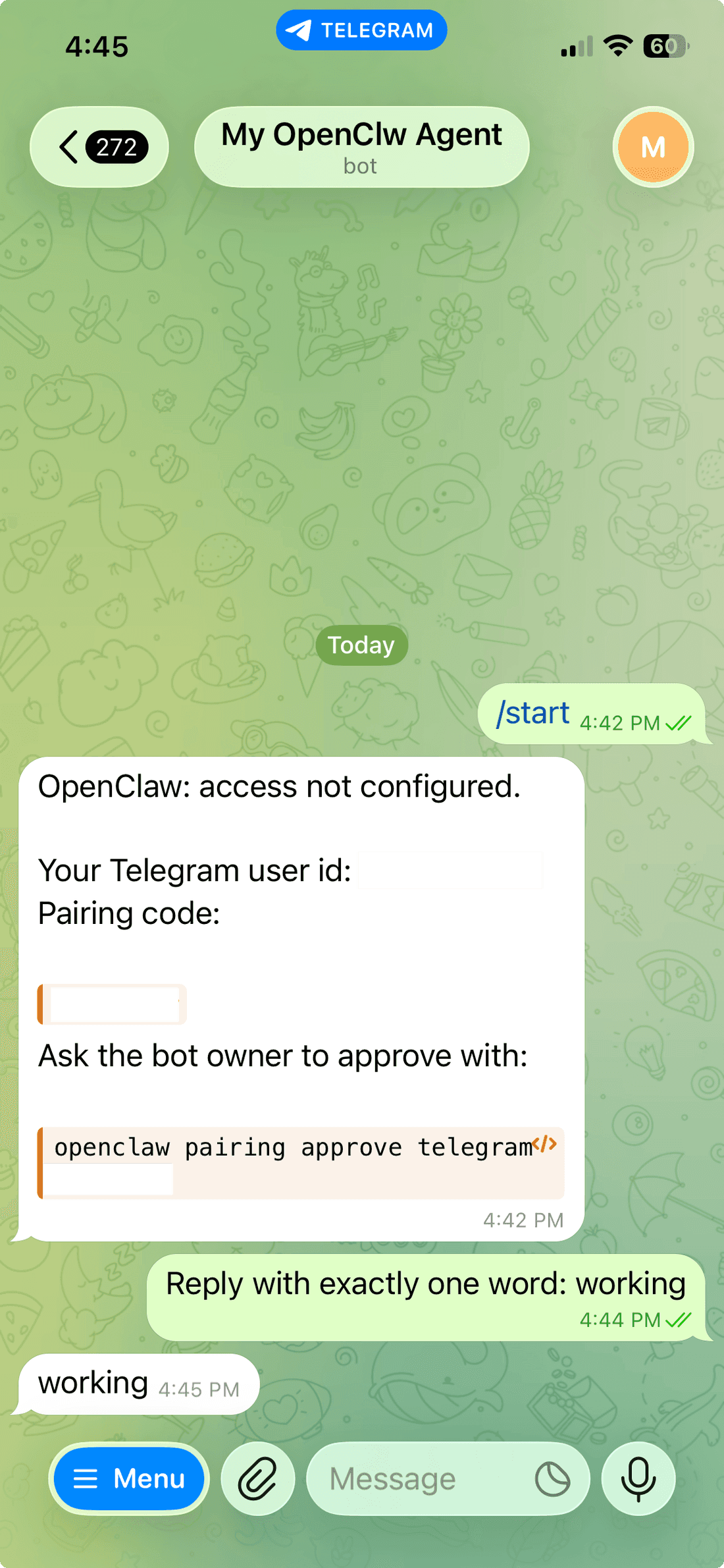
Open your bot (t.me/<your-bot-username>), tap Start, and send a message.
OpenClaw treats unknown senders as untrusted — so instead of replying, the bot returns a pairing code and your Telegram user id. This is the same security pattern as device pairing in Part 2.
Step 5 — Approve the pairing
On the VM, approve the code from the bot's message:
docker compose run --rm openclaw-cli pairing approve telegram <pairing-code>
# Approved telegram sender <id>.
# Command owner configured telegram:<id> (commands.ownerAllowFrom was empty).
Approving the first user as command owner changes config that requires a
gateway restart — OpenClaw does this automatically (you'll see
config change requires gateway restart then the Telegram provider restart in the
logs). Wait a few seconds for it to come back before messaging again.

Step 6 — Chat with your agent
Back in Telegram, just talk to it — no extra setup needed; OpenClaw with your model answers conversationally out of the box. Try something like:
In one sentence, what's the point of putting a reverse proxy in front of my agent?
It replies with a real answer — the full chain is live: your phone → Telegram → gateway → OpenAI → reply. Your self-hosted agent is now in your pocket. (Giving it tools and skills comes in later guides; conversational chat works immediately.)
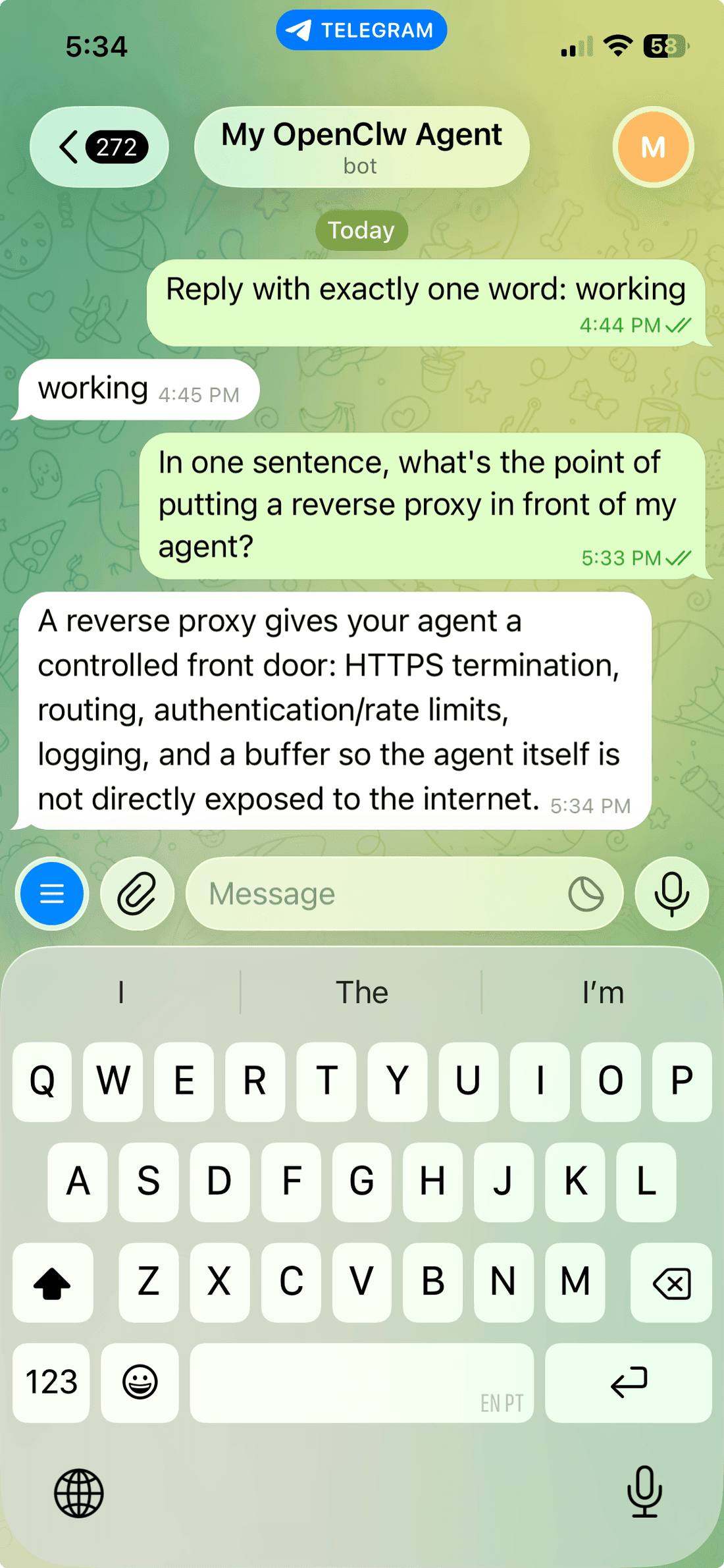
Your agent is now in your pocket — a private Telegram line to your own AI, no public webhook needed.
Troubleshooting (real errors)
1. BotFather "Start" does nothing in a browser
Opening t.me/BotFather in a plain web browser shows a Start button that does
nothing — that page is just the public bot card and needs a logged-in Telegram
client to hand off to. Use the desktop/phone app, or log in at
web.telegram.org (link a desktop device by scanning the QR from your phone:
Settings → Devices → Link Desktop Device), then message BotFather there.
2. Bot returns a pairing code instead of replying
Not an error — it's the pairing gate. Unknown senders must be approved first (Step 5). After approval, the bot chats normally.
3. Proxy headers detected from untrusted address
If you followed Part 2, the gateway logs this because Caddy sits in front of it.
It's a warning, not a failure. To silence it and restore correct client
detection, set gateway.trustedProxies to your proxy's network.
Security & sizing notes
- Pairing is the gate — only approved Telegram users reach the agent; the first approved user becomes the command owner.
- Polling, not webhooks — no inbound port is opened, which keeps the Part 2 hardening intact.
- Sizing — on a 2-vCPU box the gateway logged
event loop degradedunder load. For a busy bot, give it more CPU/RAM.
What's next
You've finished Part 3 of the Self-hosting OpenClaw series. Next:
- Part 4 — Make OpenClaw private with a NetBird mesh VPN (next) — put your agent on a private mesh and close the public ports.
Then start the Self-hosting Hermes series — Self-host the Hermes Agent with persistent memory — for an agent whose context survives restarts.
Companion files for the series live in the WiLine manifests repo (link coming with the repo).
Teardown
Remove the Telegram channel (keeps the rest of OpenClaw running):
docker compose run --rm openclaw-cli channels remove --channel telegram
docker compose restart openclaw-gateway
And /revoke the bot token in BotFather if you're done with it.