Manage Volumes
This guide provides detailed instructions on how to manage your storage volumes in WiLine Edge Cloud (WEC).
From the Volumes dashboard, you can:
- View all your volumes and their status
- Attach volumes to virtual machines
- Resize storage
- Monitor usage and events
Step 1: Access the Volumes Dashboard
- Log in to the WiLine Edge Cloud.
- In the sidebar, click Storage.
- Select Volumes.
You will see a table listing all your volumes, including their name, size, type, status, and zone.
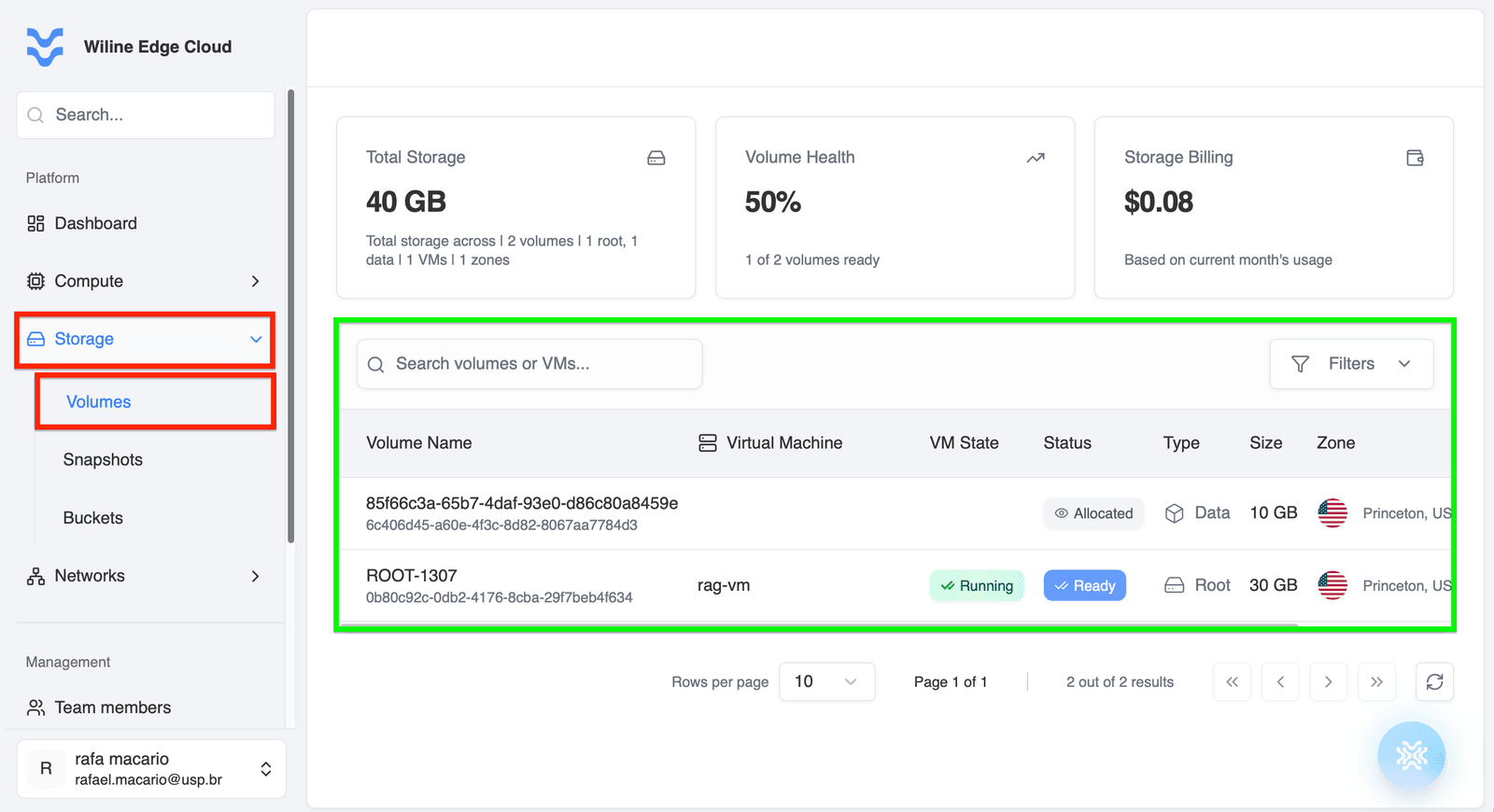 Figure 1 — Volumes dashboard with a list of volumes and their statuses.
Step 2: Manage a Volume
Click on a volume from the table to open its management page.
Control Panel
At the top of the page, you will see the control panel with the following actions:
-
Refresh Volume Data:
Updates the volume status and information. -
Attach Volume to VM:
Connects the volume to a virtual machine. -
Detach Volume:
Disconnects the volume from the currently attached virtual machine. -
Resize Volume:
Increases the storage capacity of the volume. -
Create Snapshot:
Captures the current state of the volume for backup or recovery. -
Delete Volume:
Permanently deletes the volume and all stored data.
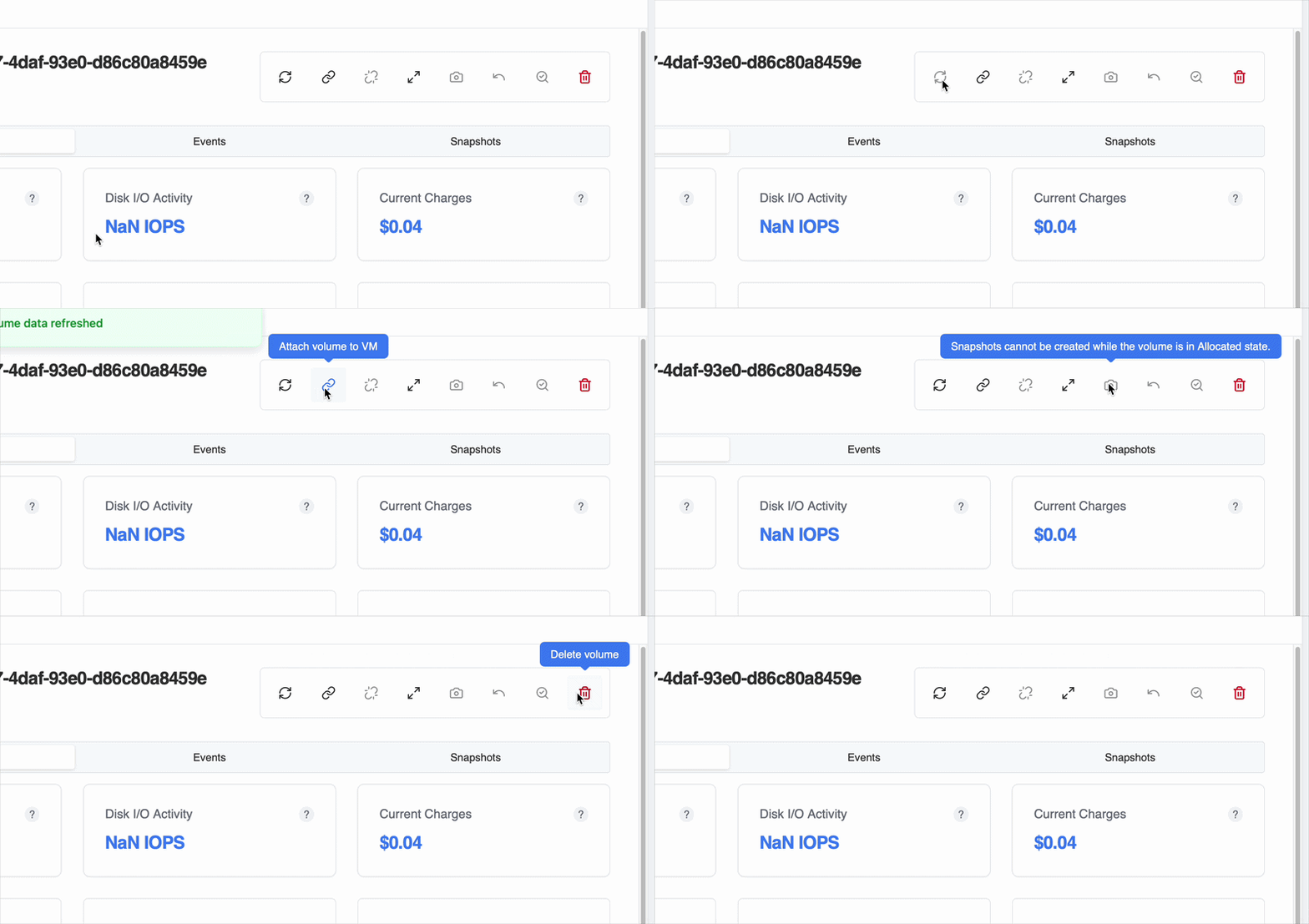 Figure 2 — Volume control panel with action icons.
:::important Action availability depends on volume state
Some actions in the control panel are only available depending on the current status of the volume:
- Attach (Link) is available when the volume is not attached
- Detach (Unlink) appears when the volume is already attached to a VM
- Resize may be restricted depending on the volume state or platform constraints
- Snapshot (camera icon) is available only if the volume supports snapshots
If a button appears disabled, check the volume’s status in the Overview tab.
:::
Step 3: Volume Management Tabs
Once you open a volume’s management page, you can use these tabs to monitor and manage it.
Overview
Provides a high-level summary of the volume’s configuration and status.
At the top, you’ll see key metrics:
-
Storage Size — e.g.
10 GB
Total disk capacity allocated to this volume. -
Disk I/O Activity — e.g.
NaN IOPS
Number of read/write operations per second (performance indicator). -
Current Charges — e.g.
$0.04
Estimated cost accrued for this volume so far.
You can also find detailed information:
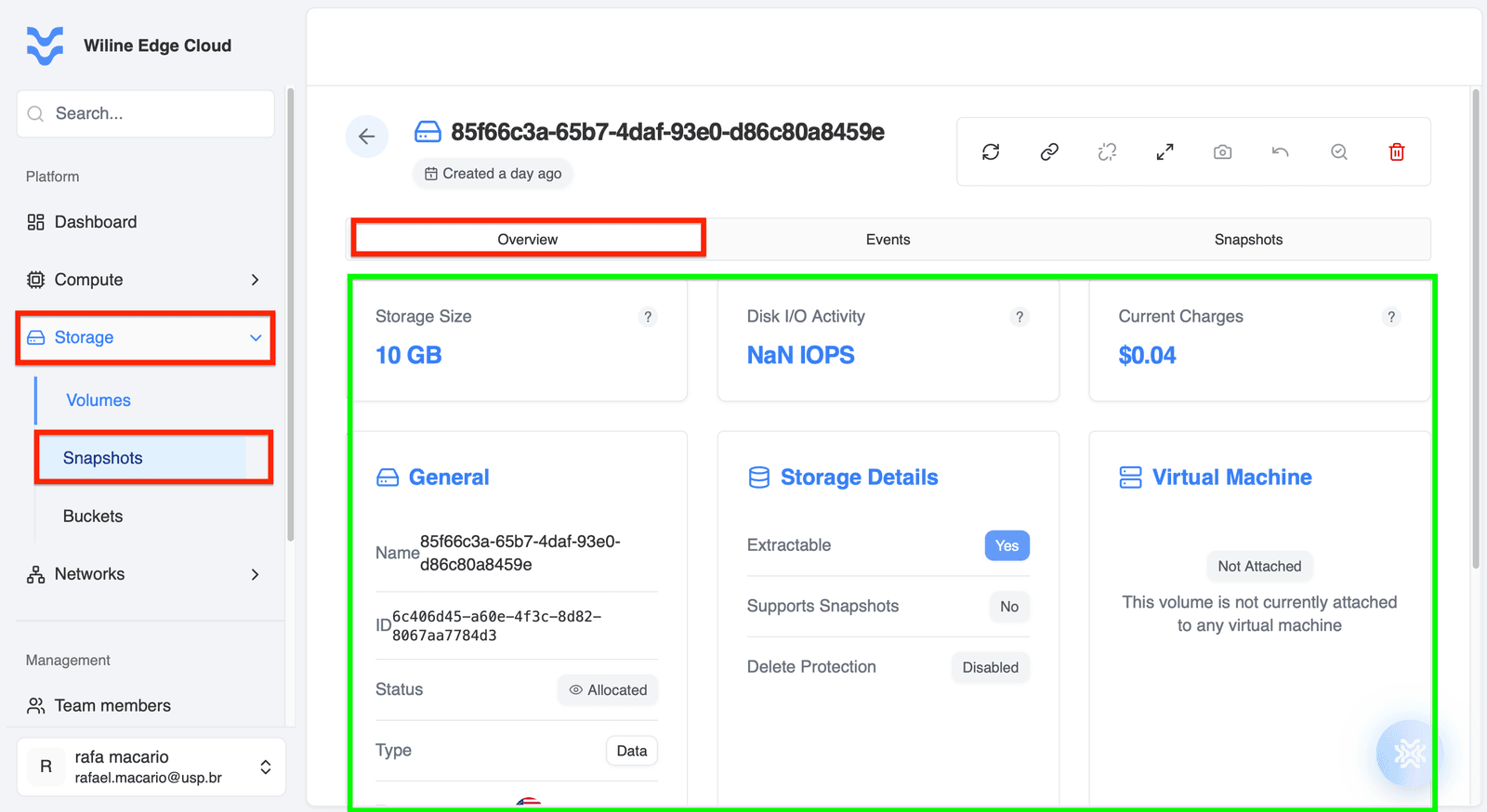 Figure 4 — Overview tab with volume details and metrics.
General
- Name:
85f66c3a-65b7-4daf-93e0-d86c80a8459e - ID:
6c406d45-a60e-4f3c-8d82-8067aa7784d3 - Status:
Allocated - Type:
Data - Zone:
Princeton, USA
These fields identify the volume and show its current lifecycle state and location.
Storage Details
- Extractable:
Yes - Supports Snapshots:
No - Delete Protection:
Disabled
These settings define what operations are allowed on the volume (e.g., backups or deletion protection).
Virtual Machine
- Status:
Not Attached
This indicates whether the volume is currently attached to a VM and actively in use.
Metrics
There are no metrics available
This typically happens when:
- The volume is not attached to a VM
- There is no active disk activity
Metrics help you understand how intensively the volume is being used.
Tags
Tags help organize your volumes.
Example:
environment: productionproject: storage-test
Events
Track all actions performed on the volume.
This tab provides a chronological log of operations.
Each entry represents an action performed on the volume, either by a user or the system.
Example:
- Event Type:
Volume Create - Description:
Successfully completed creating volume. Volume Id: 6c406d45-a60e-4f3c-8d82-8067aa7784d3 - State:
Completed - Resource:
85f66c3a-65b7-4daf-93e0-d86c80a8459e - User:
rafa.macario - Created:
Apr 8, 2026, 3:16 PM
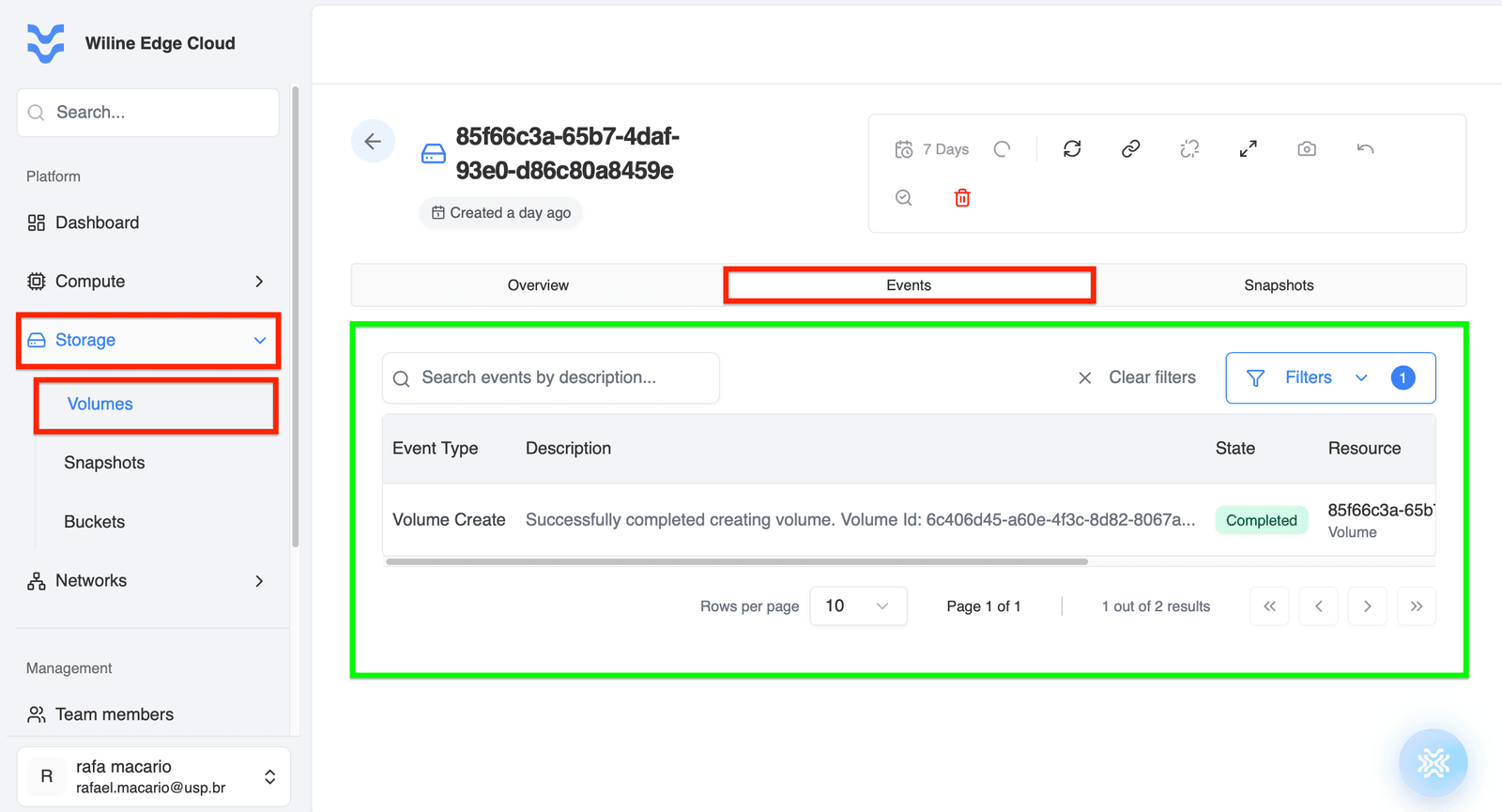 Figure 5 — Events tab showing volume activity logs.
What you can do here:
- Track volume lifecycle events
- Identify failures or issues
- Audit user actions
Common Event Types
Volume Create→ volume was createdVolume Delete→ volume was deletedVolume Attach→ attached to a VMVolume Detach→ detached from a VMVolume Resize→ storage capacity changed
Snapshots
Manage backups of your volume.
Snapshots allow you to capture the state of a volume at a specific point in time.
This is useful for backups, recovery, and cloning data.
Snapshot List
If no snapshots exist, you will see:
No snapshots foundThis volume doesn't have any snapshots yet.
What this means
- The volume has no backups created yet
- You should create snapshots before making major changes
If you don’t see any snapshots listed, it means you haven’t created one yet.
To learn how to create and manage volume snapshots, follow the step-by-step guide in the Snapshots section of the documentation.
What you can do here
- Create Snapshot — capture current volume state
- Restore Volume — recover data from a snapshot
- Track backups — view snapshot history and status
Snapshots are critical for preventing data loss and enabling rollback to previous states.
Example (when snapshots exist):
- Snapshot Name:
vol-snap-20260409 - Status:
Ready - Type:
Full - Created:
Apr 9, 2026, 10:57 AM
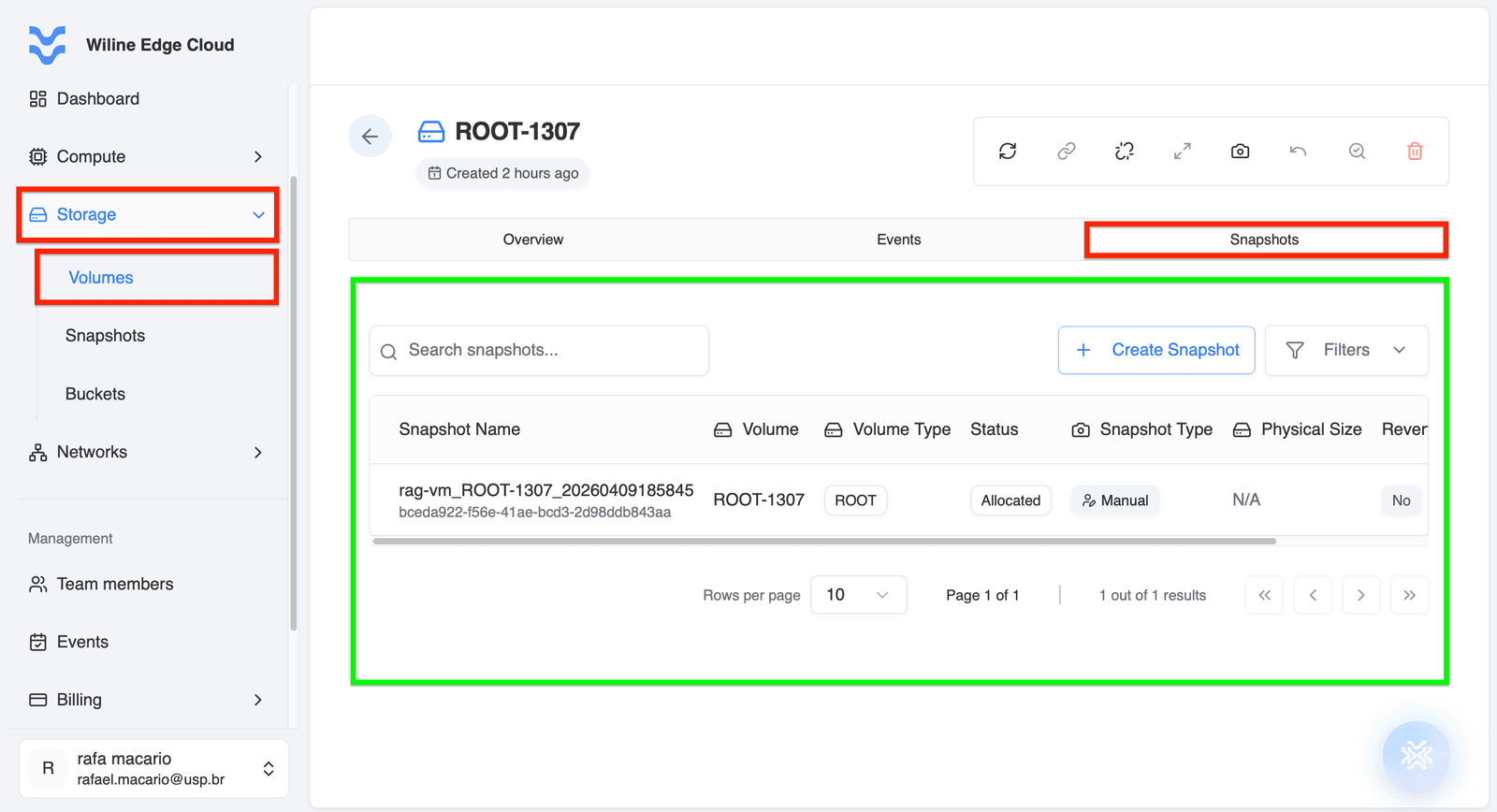 Figure 6 — Snapshots tab with backup management options.
Best Practices
- Attach volumes only when needed to avoid unnecessary costs
- Create snapshots regularly to prevent data loss
- Monitor events to track changes and troubleshoot issues
- Resize volumes proactively based on usage growth
- Use tags to organize volumes across environments