Configure Elastic IPs
Elastic IPs (Public IPs) allow you to expose your virtual machines to the internet using a static, publicly accessible IP address in WiLine Edge Cloud (WEC).
These IPs can be dynamically allocated, attached to virtual machines, detached, and released back to the pool as needed.
Elastic IPs provide:
- Static public access — Maintain a consistent public endpoint for your services
- Flexible allocation — Attach and detach IPs from virtual machines at any time
- Usage-based billing — Pay only for allocated resources
View Elastic IPs
After logging in to the WiLine Edge Cloud:
- Navigate to Networks → Elastic IPs.
You will see a dashboard with summary metrics and a table listing all Elastic IPs:
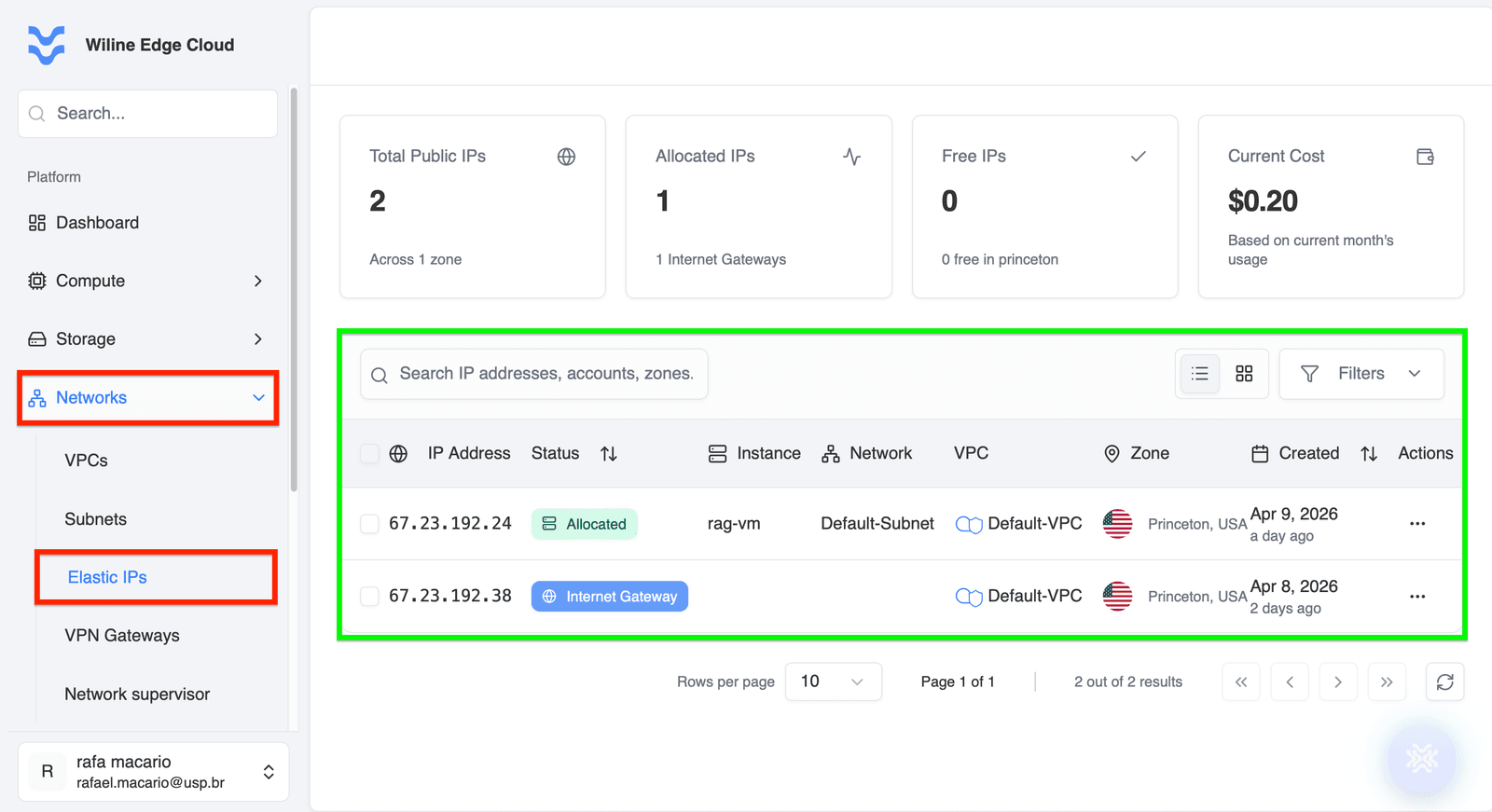 Figure 1: Elastic IP dashboard showing metrics and IP list.
At the top, you’ll see key statistics:
- Total Public IPs — total number of IPs across zones
- Allocated IPs — IPs currently attached to virtual machines
- Free IPs — available IPs not in use
- Current Cost — usage-based billing for the current period
Example:
- Total Public IPs:
2 - Allocated IPs:
1 - Free IPs:
0 - Current Cost:
$0.20
Below the statistics, you’ll find a table listing all Elastic IPs.
Each row represents a public IP and includes:
- IP Address — public IP value
- Status — allocation state (e.g. Allocated)
- Instance — associated VM (if attached)
- Network — subnet
- VPC — associated VPC
- Zone — deployment location
- Created — creation timestamp
Example: Elastic IP entries
| IP Address | Status | Instance | Network | VPC | Zone | Created |
|---|---|---|---|---|---|---|
| 67.23.192.24 | Allocated | rag-vm | Default-Subnet | Default-VPC | Princeton | Apr 9, 2026 |
| 67.23.192.38 | — | — | — | Default-VPC | Princeton | Apr 8, 2026 |
Actions column
In each row, clicking the icon opens the Elastic IP Actions menu.
Available actions include:
- Allocate to VM — attach the IP to a virtual machine
- View details — open detailed information page
- Detach IP from VM — remove association from VM
- Release IP — return the IP to the pool
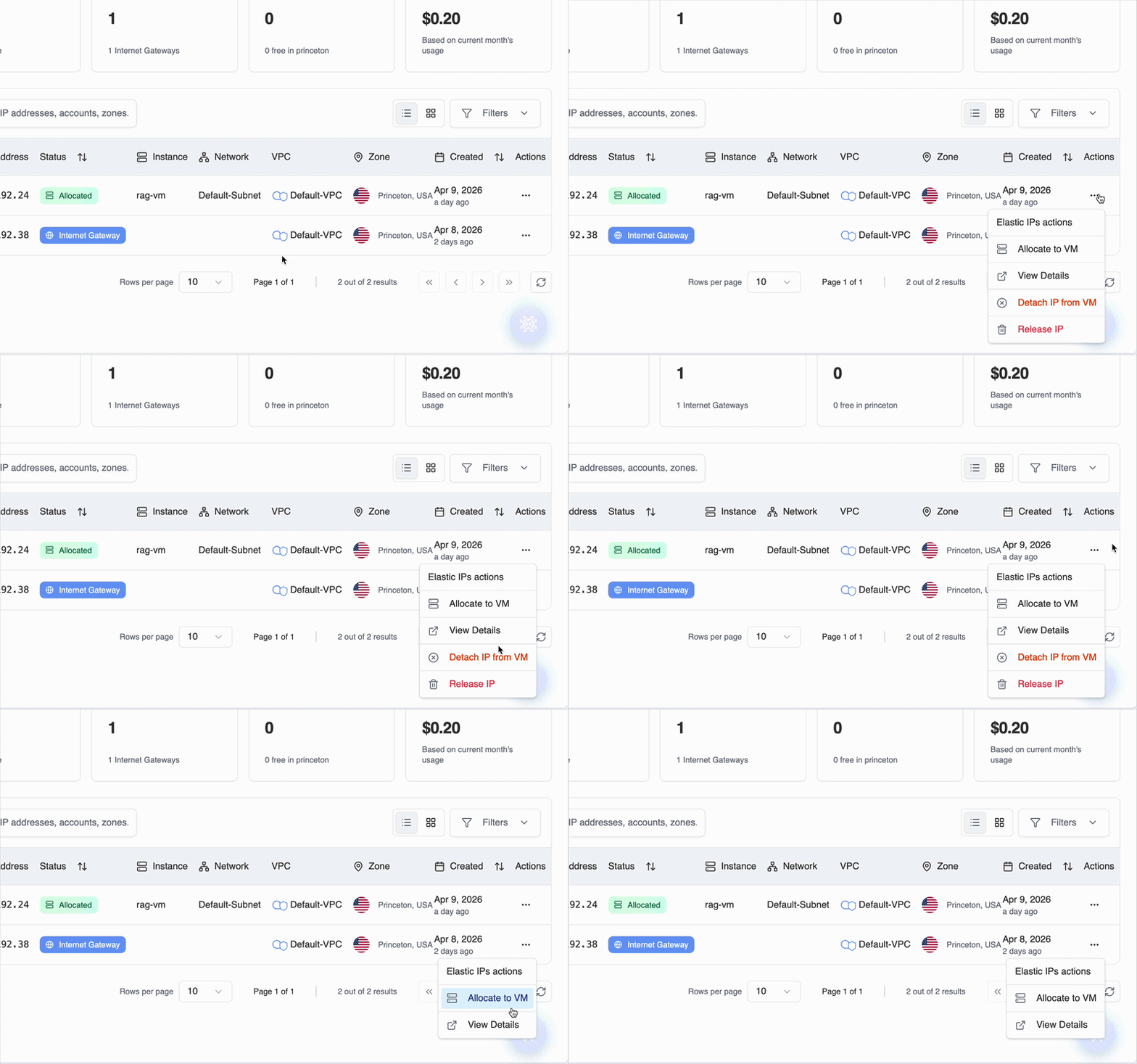 Figure 3: Actions menu for managing an Elastic IP.
Some actions are only available when the IP is allocated. For example, detach and release options require an active association.
Manage Elastic IPs
To manage an Elastic IP:
- Locate the IP in the table (see Open the Subnets page)
- (Optional) Use filters to find specific entries
- Click the in the Actions column
- Select the desired operation
Allocate to VM
This action maps a public IP to a virtual machine.
- Opens a modal with available VMs
- Only VMs in the same VPC are selectable
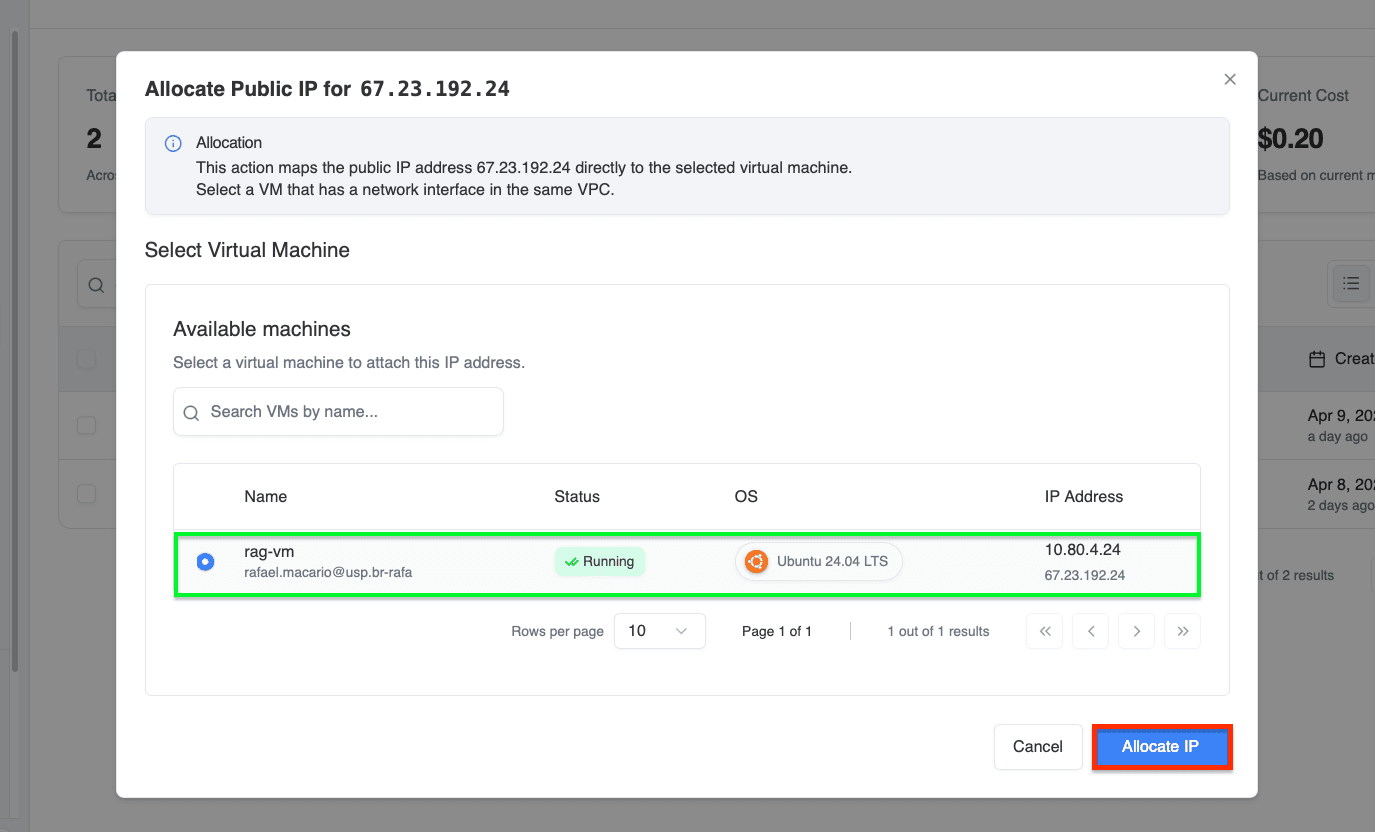 Figure 4: Allocate IP modal showing available virtual machines.
Example:
- IP:
67.23.192.24 - VM:
rag-vm - Private IP:
10.80.4.24
View Details
Clicking View details opens a dedicated page for the selected Elastic IP.
At the top of the page, you will see quick action icons:
- Refresh — reload public IP data
- Allocate to VM — attach the IP to a virtual machine
- Detach IP from VM — remove association
- Release IP — permanently release the IP
These actions provide quick access without returning to the main table.
The page is organized into two tabs:
Overview tab
Displays detailed information about the IP:
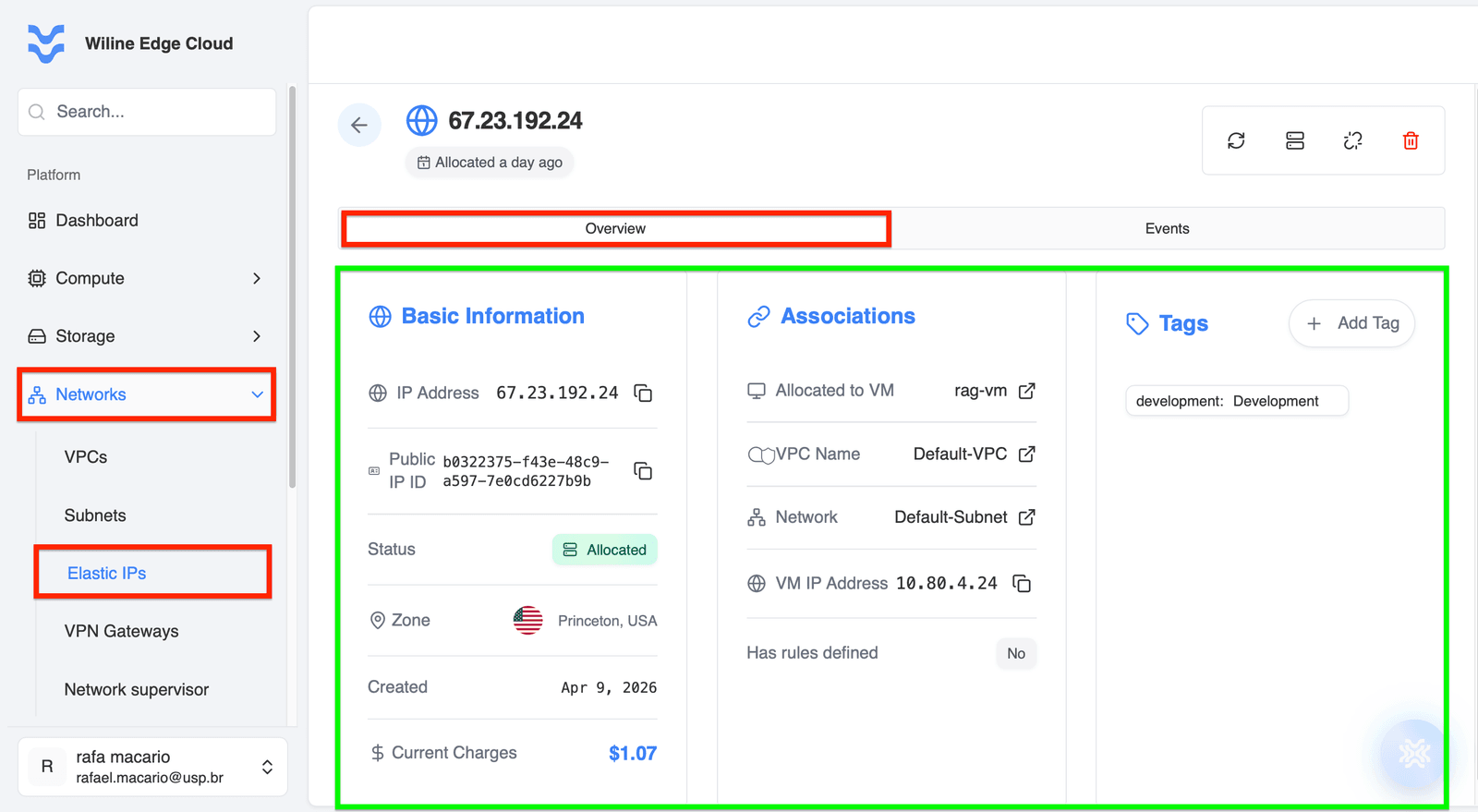 Figure 5: Overview tab with detailed Elastic IP information.
Basic Information
- IP Address:
67.23.192.24 - Public IP ID:
b0322375-f43e-48c9-a597-7e0cd6227b9b - Status:
Allocated - Zone:
Princeton, USA - Created:
Apr 9, 2026 - Current Charges:
$1.07
Associations
- Allocated to VM:
rag-vm - VPC Name:
Default-VPC - Network:
Default-Subnet - VM IP Address:
10.80.4.24
Additional fields:
- Has rules defined:
No - Tags:
development: Development
Events tab
Displays a log of actions performed on the Elastic IP.
Each event includes:
- Event Type — action performed (e.g., allocation)
- State — result status (e.g., Completed)
- Timestamp — when the action occurred
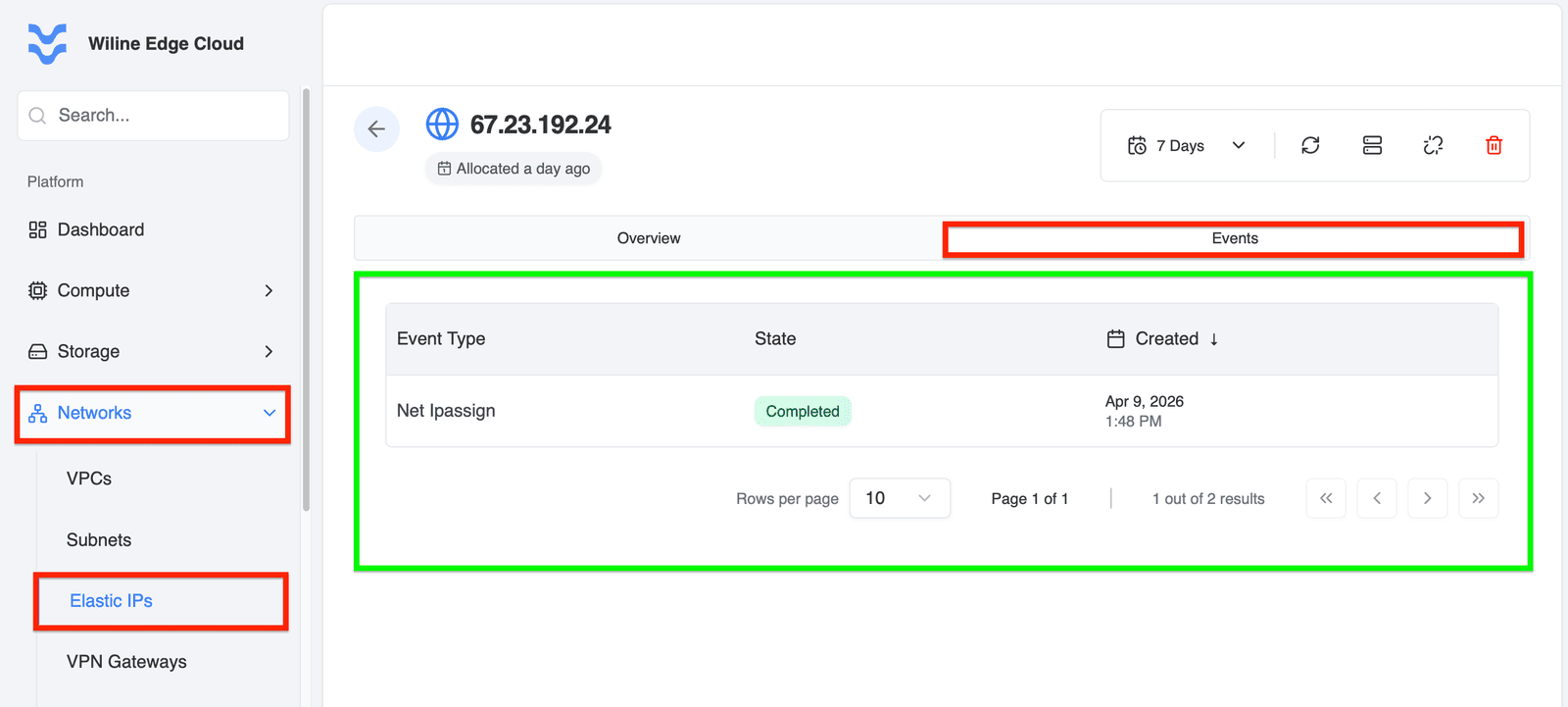 Figure 5: Events tab with detailed Elastic IP information.
Example:
- Event Type:
Net Ipassign - State:
Completed - Time:
Apr 9, 2026, 1:48 PM
At the top of the Events tab, you can filter activity using the time range selector:
- Time range selector
Options include:
1 day3 days7 days14 days30 daysCustom range
Selecting Custom range opens a calendar where you can define a specific time window.
This allows you to analyze IP activity over time and troubleshoot changes.
Detach IP from VM
Removes the IP from the associated virtual machine.
Confirmation modal:
- Indicates Static NAT will be disabled
- Requires explicit confirmation
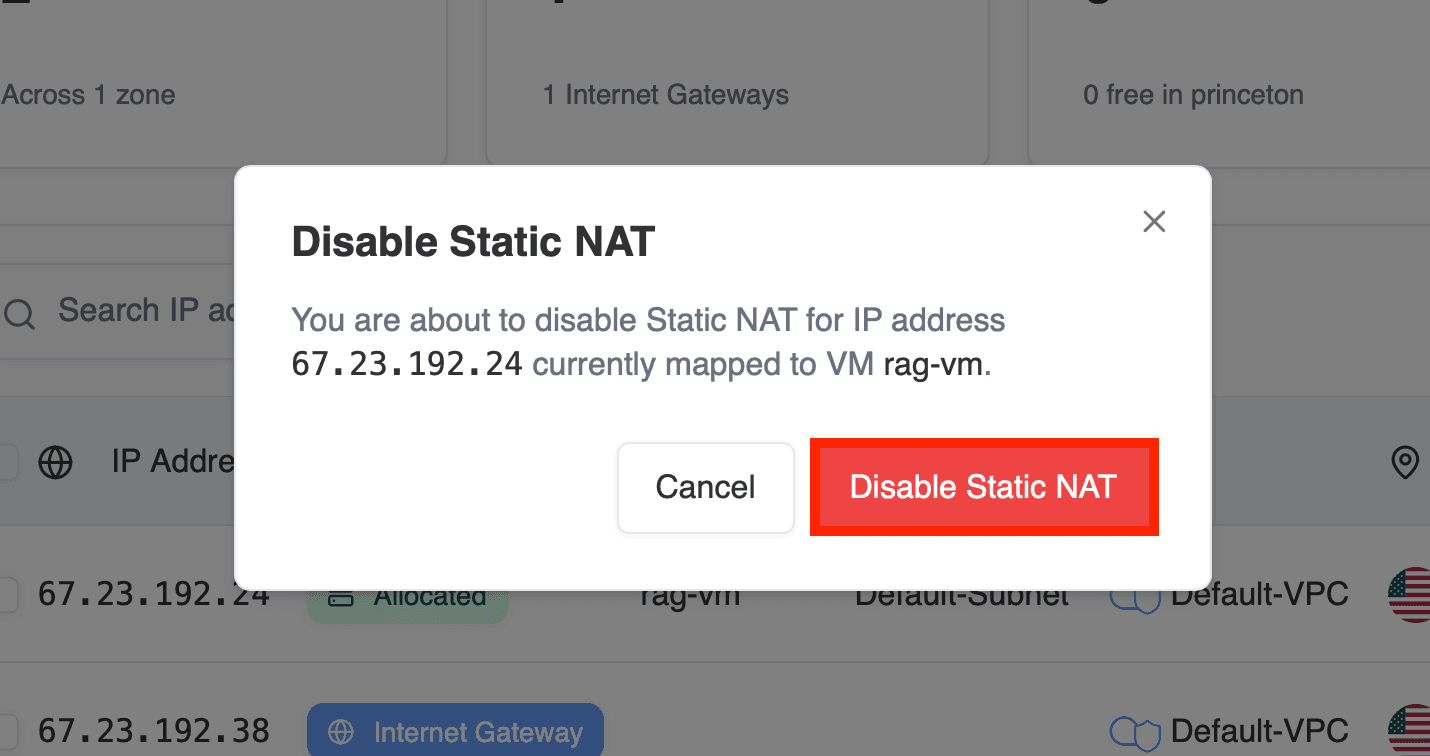 Figure 7: Confirmation modal for detaching an IP.
Release IP
Permanently releases the IP back to the pool.
Once released, the IP may be reassigned to another user.
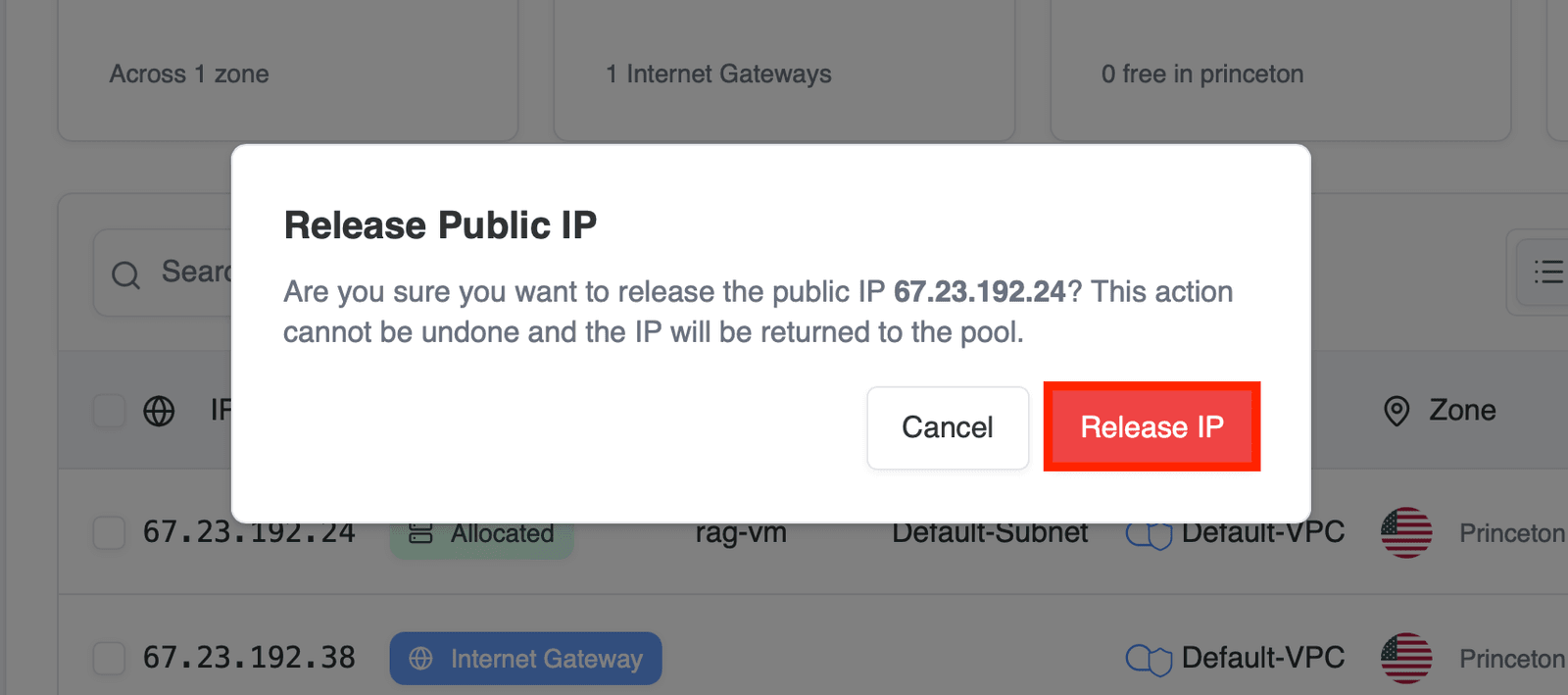 Figure 8: Confirmation modal for releasing an IP.
Behavior Based on Status
Action availability depends on the IP state:
-
Allocated IP
- Can be detached
- Can be released
- Shows associated VM
-
Unallocated IP
- Can be allocated to a VM
- May not show detach option
Understanding the IP status ensures you select the correct operation.
Next Steps
After managing Elastic IPs, you may want to:
- attach IPs to new virtual machines
- configure firewall or NAT rules
- monitor usage and costs
These topics are covered in other networking sections of the documentation.