Tickets
The Tickets section allows you to contact support and manage your support requests in WiLine Edge Cloud (WEC).
From this page, you can:
- Open new support tickets
- Track existing requests
- Filter and search tickets
Access Tickets
After logging in to the WiLine Edge Cloud:
- Navigate to Management → Tickets
Manage Tickets
When you open the page, you will see a table with all your tickets, along with controls to filter and search.
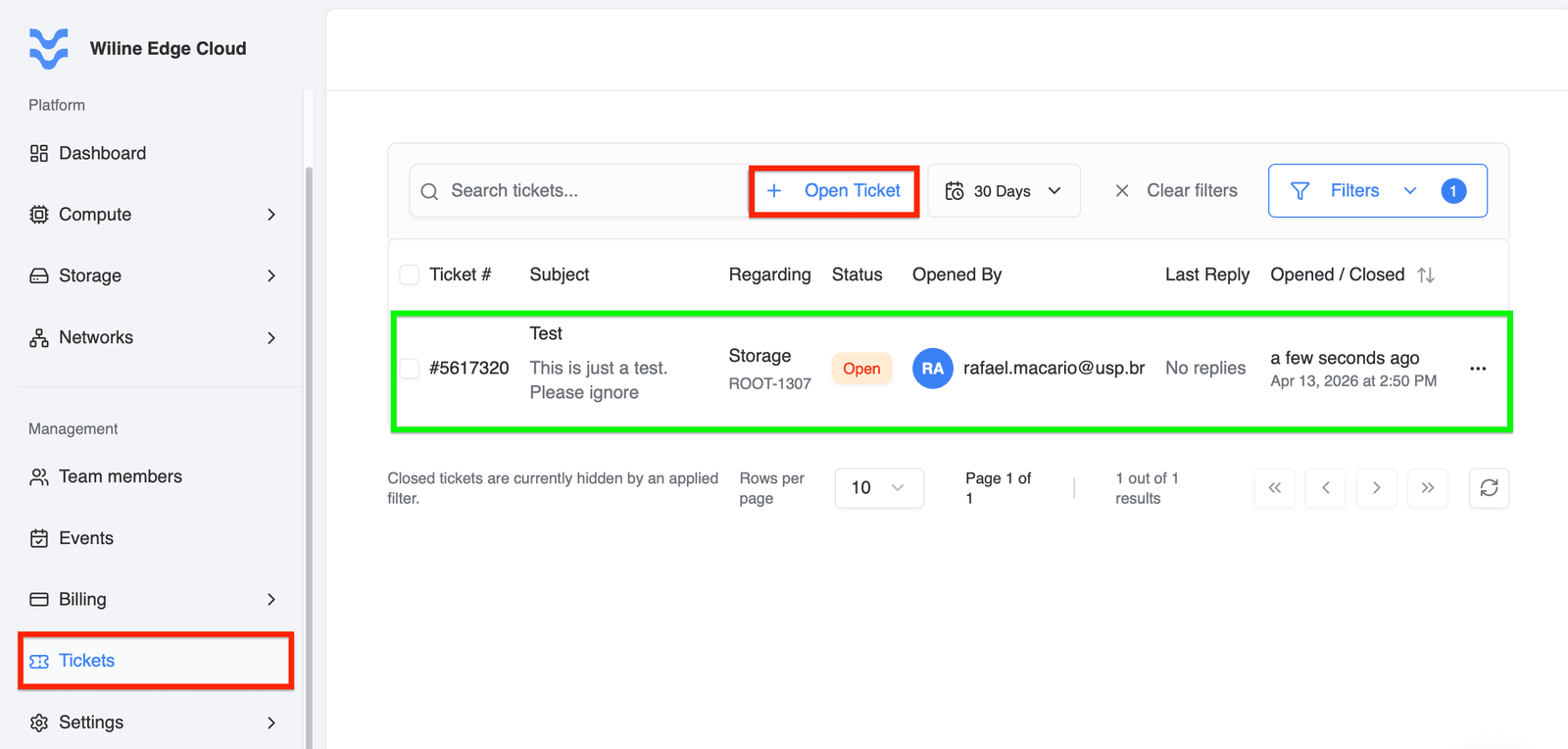
Figure 1: Tickets table with filters and search.
Controls
At the top of the table, you can:
- Use the search bar to find tickets by subject or content
- Use the time range selector to filter by period
- Apply filters:
- Priority —
Low,Medium,High - Status — open or closed tickets
- Priority —
- Use Display (Columns) to show or hide table columns
Table Columns
Each row represents a ticket and includes:
- Ticket #
- Subject
- Regarding — related category or resource
- Status
- Opened By
- Last Reply
- Opened / Closed
- Actions
You can also sort some columns by clicking on their headers.
Ticket Actions
Each ticket row includes an Actions menu (⋯) on the right.
Click the ellipsis to access:
- Copy Ticket ID — copy the unique ticket identifier
- View Details — open the full ticket and conversation
- Close Ticket — close the request once it is resolved
These actions allow you to quickly manage and track individual tickets.
Open a Ticket
To contact support:
- Click Open Ticket
- Fill out the form
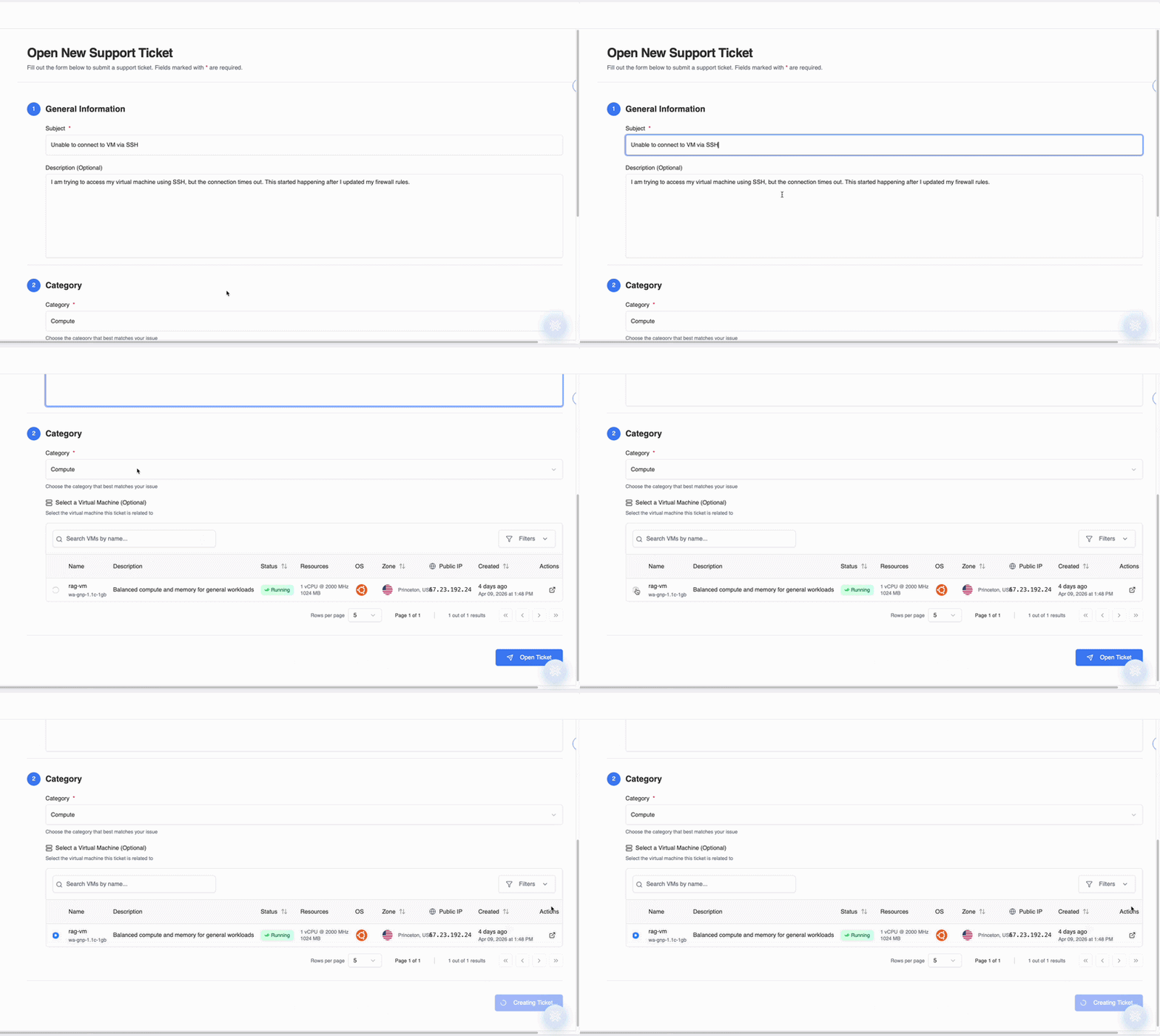
Figure 2: Open ticket form.
Form Sections
The form includes two main sections:
-
General Information
Provide details about your request (e.g., subject and description).
-
Category
Select the category that best matches your issue:
GeneralComputeStorageNetworksUsersBillingLimits
Category-specific fieldsDepending on the selected category, additional (optional) fields may appear:
- General — no additional fields
- Compute — select a Virtual Machine
- Storage — select a Volume
- Networks — select a resource type: VPC, Subnet, or Elastic IP
- Users — select a Team Member
- Billing — no additional fields
- Limits — select a resource type:
- Instances
- GPU Instances
- Elastic IPs
- Networks
- VPCs
- CPU
- Memory (GB)
- Storage (GB)
These fields help provide more context to support, but are optional unless specified otherwise.
Example: Opening a Ticket
-
General Information
- Subject:
Unable to connect to VM via SSH - Description:
I am trying to access my virtual machine using SSH, but the connection times out. This started happening after I updated my firewall rules.
- Subject:
-
Category
- Selected:
Compute - Virtual Machine (optional):
web-server-01
This example shows a typical support request with enough detail for the support team to investigate the issue.
- Selected:
-
Click Open Ticket to submit your request
Once submitted, your ticket will appear in the table, where you can track updates and responses.
Key Benefits
The Tickets section allows you to:
- Quickly contact support
- Track the status of your issues
- Organize requests by priority and category