Payment Information
The Payment methods page is where you add and manage the cards used for invoices and account top-ups.
This page is accessed when you click Change in the Billing Overview.
From this page, you can add a new payment method, see the method currently on file, or redeem a coupon.
Access Payment Information
After logging in to the WiLine Edge Cloud:
- Navigate to Management → Billing → Payment Information
Or from Billing → Overview:
- Under Payment Method, click Change
- If no payment method is configured, you can also configure a new pament from here
On this page, you can manage your payment method:
- If a card already exists, you will see it under On file along with an Add payment method option
- If no payment method exists, you will only see the Add payment method option
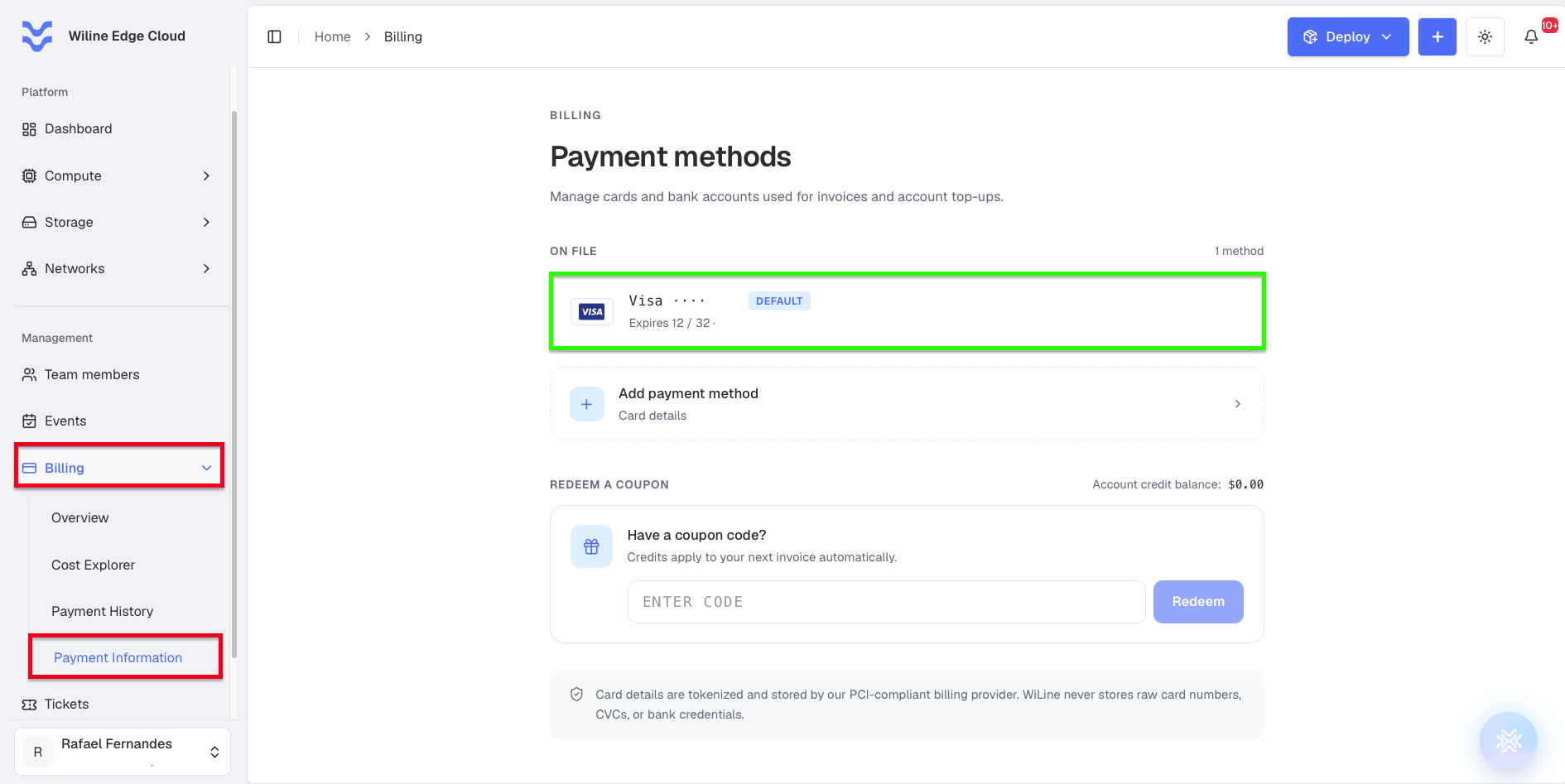
Figure 1: Payment methods page showing the card on file and the option to add a new one.
Each saved card shows:
- A Default badge on the card used for automatic invoice payments
- The card brand and masked number (for example,
Visa ····0053) - The expiry date and cardholder name (for example,
Expires 12 / 32 · Jane Doe)
A counter at the top (for example, On file — 1 method) shows how many payment methods are saved.
Accepted payment methods
WEC currently accepts credit cards only. Other methods — such as Apple Pay, Google Pay, PayPal, or bank transfer — are not supported at this time. When you click Add Payment Method, the form asks for card details.
Add a Payment Method
To add a new card:
-
Click Add Payment Method
-
A form will open to enter your card details
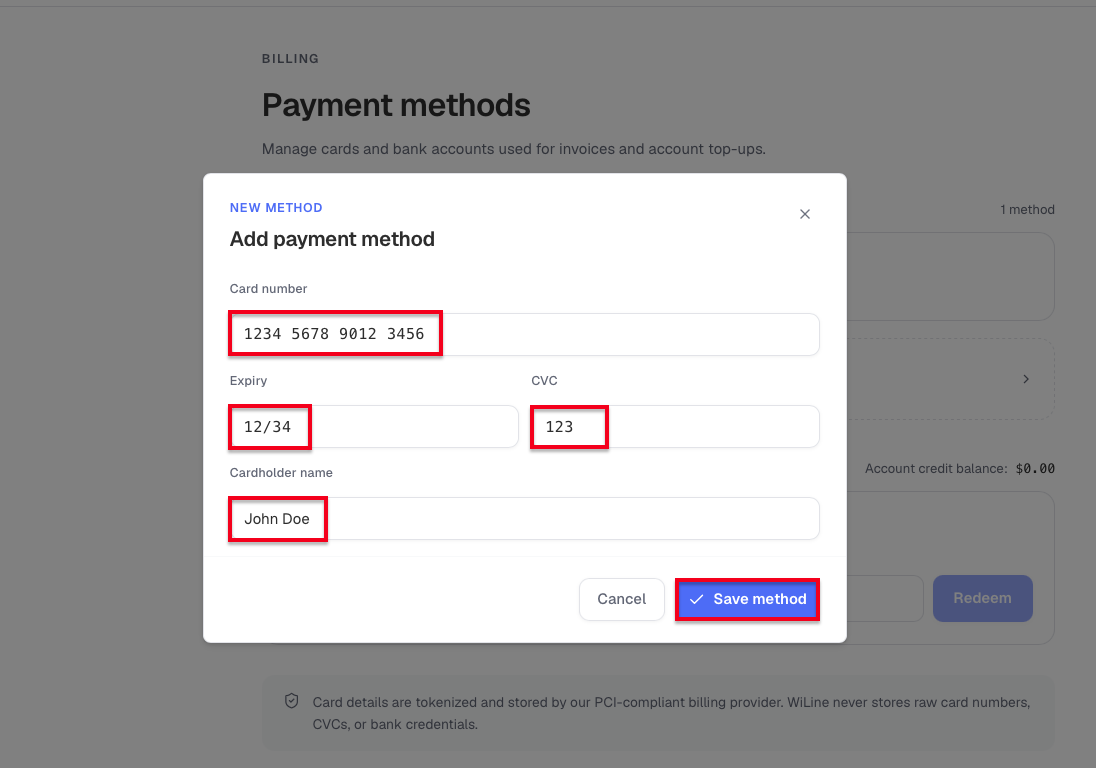
Figure 2: Add Payment Method form for entering card details. -
Enter the required information:
- Card Number
- Cardholder Name
- Expiration Date (MM/YY)
- CVV
-
Click Save Payment Method
Once saved, the card will be available for billing and future payments.
Redeem a coupon
This page also includes a Redeem a coupon panel showing your current account
credit balance (for example, $0.00). If you have a coupon code, enter it and click
Redeem to add credit — credits apply to your next invoice automatically. See
Coupons & Credits.
Security
Card details are tokenized and stored by our PCI-compliant billing provider — WiLine never stores raw card numbers, CVCs, or bank credentials.
Related
- Billing Overview — monitor usage and invoices
- Payment History — review transactions and receipts
- Coupons & Credits — redeem coupon codes