Payment History
The Payment History page provides a detailed view of all your billing records, including invoices, receipts, and credit transactions.
This section extends the Billing History available in the Overview page, offering additional filters and deeper insights.
From this page, you can:
- View and download invoices
- Review payment receipts
- Track credit usage and adjustments
- Filter and analyze billing data
Access Payment History
After logging in to the WiLine Edge Cloud:
- Navigate to Management → Billing → Payment History
At the top of the page, you will find three main controls:
- Invoices, Receipts, Credit Transactions (left) — select the record type. Each tab shows a count of records in the selected period (for example, Invoices 6, Receipts 4, Credit Transactions 9).
- Time range (right) — choose a preset or define a custom date range (for example,
Jun 25, 2025 – Jun 25, 2026) - Filters and columns — refine results and control visible data
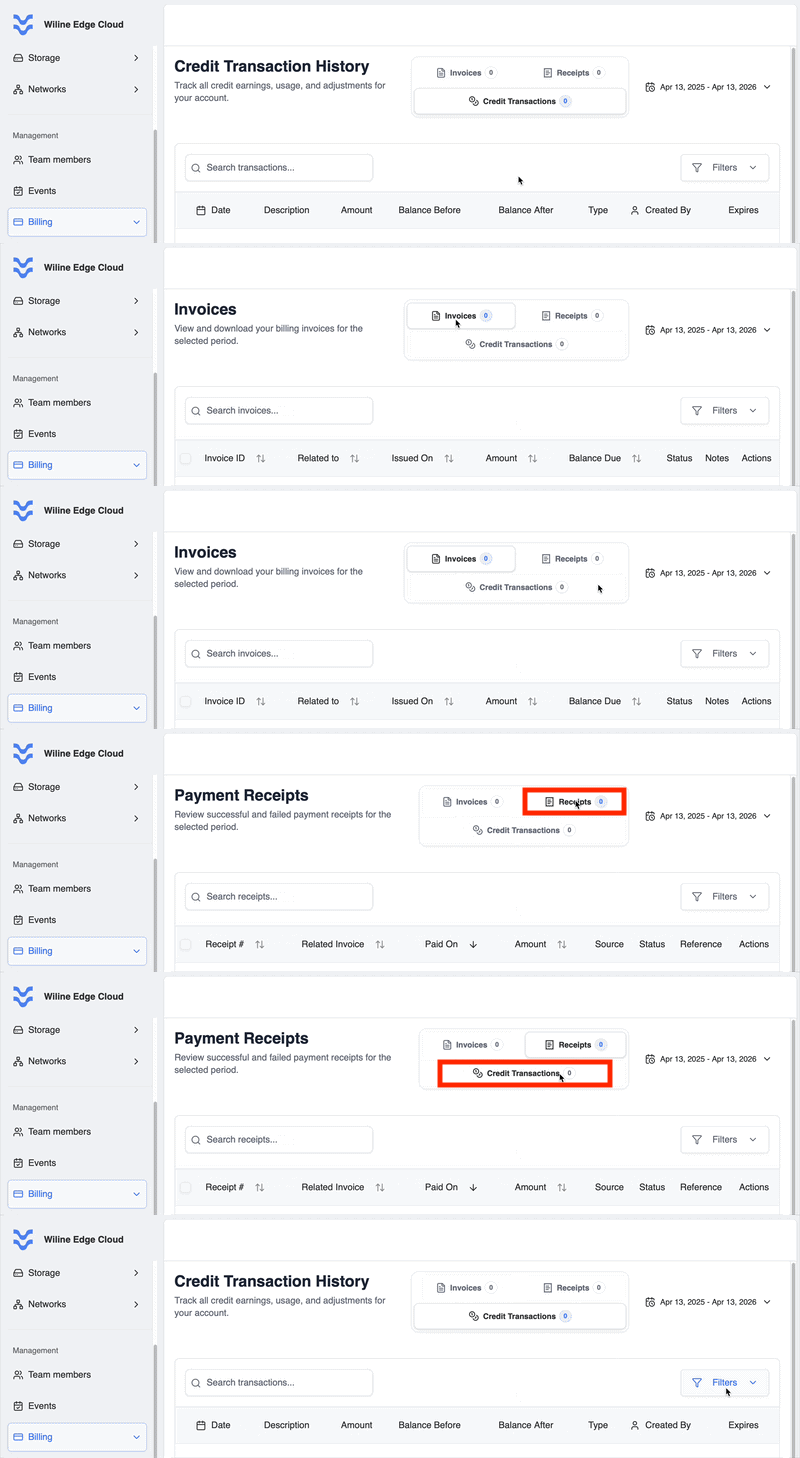
Figure 1: Payment history table with filters and record types.
Selecting a record type updates both the data and the table columns for that view.
Record Types
Invoices
Billing statements for the selected period. You can open and download invoices.
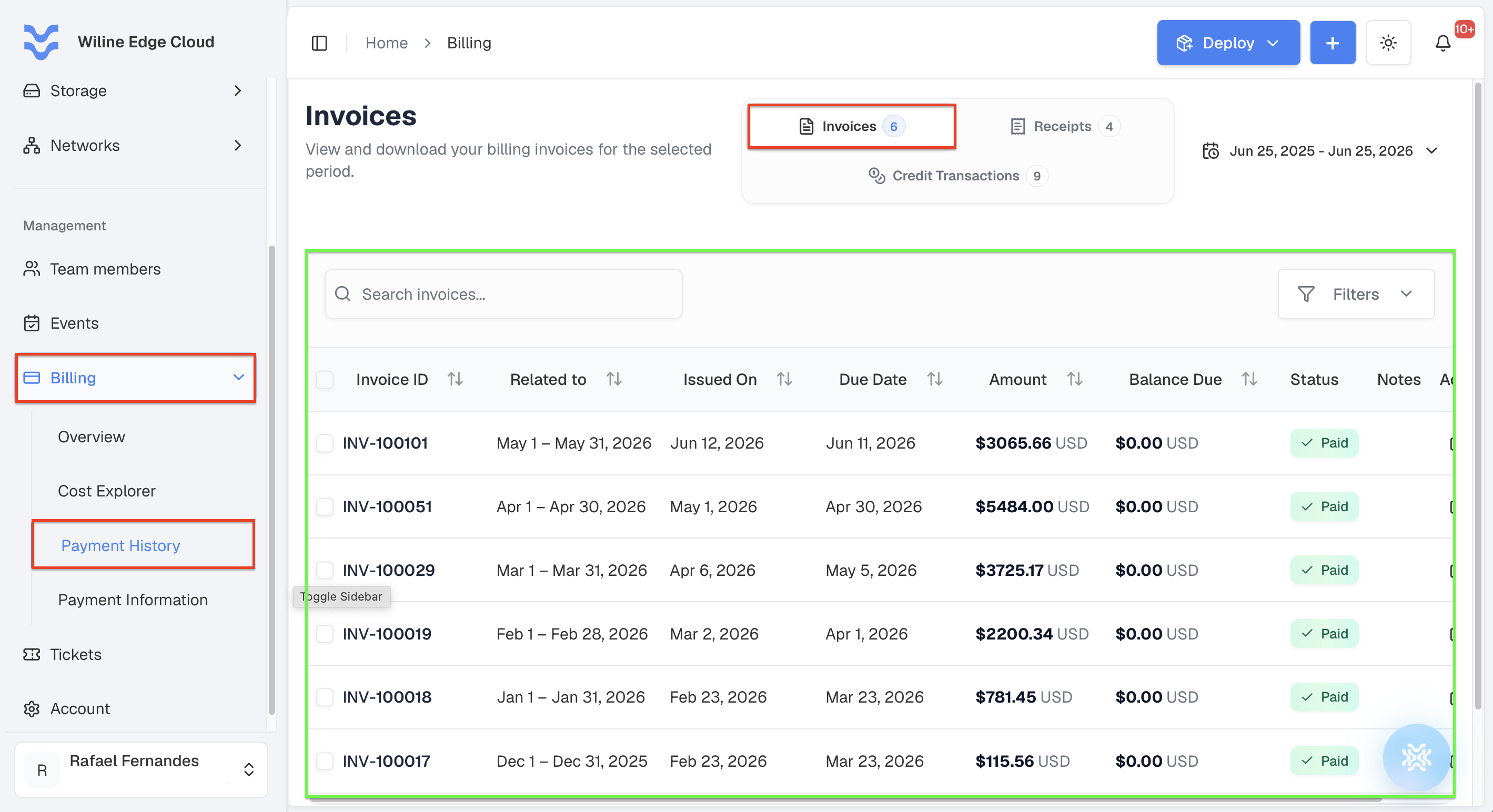
Figure 2: Invoices view listing billing statements for the selected period.
Columns include:
- Invoice ID
- Related To — the billing period the invoice covers
- Issued On — the date the invoice was generated
- Due Date — the date payment is due
- Amount
- Balance Due
- Status
- Notes
- Actions
- View Invoice Details — open the invoice preview (PDF view)
- Download Invoice PDF — download the invoice as a PDF file
A typical list of invoices looks like this:
| Invoice ID | Related To | Issued On | Due Date | Amount | Balance Due | Status |
|---|---|---|---|---|---|---|
INV-100101 | May 1 – May 31, 2026 | Jun 12, 2026 | Jun 11, 2026 | $3,065.66 USD | $0.00 USD | Paid |
INV-100051 | Apr 1 – Apr 30, 2026 | May 1, 2026 | Apr 30, 2026 | $5,484.00 USD | $0.00 USD | Paid |
INV-100029 | Mar 1 – Mar 31, 2026 | Apr 6, 2026 | May 5, 2026 | $3,725.17 USD | $0.00 USD | Paid |
INV-100019 | Feb 1 – Feb 28, 2026 | Mar 2, 2026 | Apr 1, 2026 | $2,200.34 USD | $0.00 USD | Paid |
INV-100018 | Jan 1 – Jan 31, 2026 | Feb 23, 2026 | Mar 23, 2026 | $781.45 USD | $0.00 USD | Paid |
INV-100017 | Dec 1 – Dec 31, 2025 | Feb 23, 2026 | Mar 23, 2026 | $115.56 USD | $0.00 USD | Paid |
When you click View Invoice Details, the invoice opens in a preview where you can also download the PDF.
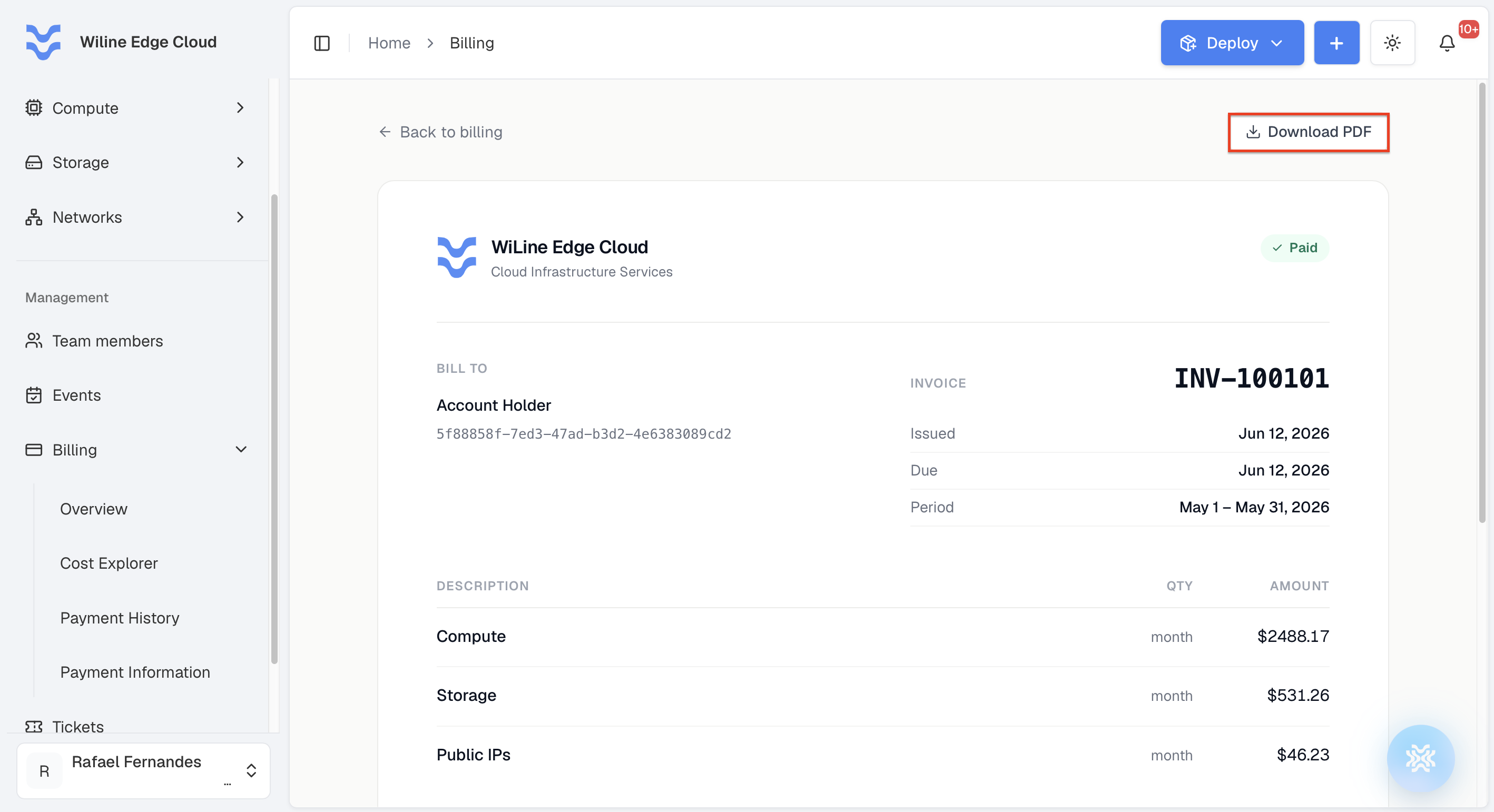
Figure 3: Invoice preview showing billing details with options to view and download the PDF.
Example:
- Invoice ID:
INV-100101 - Related To:
May 1 – May 31, 2026 - Issued On:
Jun 12, 2026 - Due Date:
Jun 11, 2026 - Amount:
$3,065.66 USD - Balance Due:
$0.00 USD - Status:
Paid
Receipts
Payment results for the selected period, including successful and failed transactions.
Columns include:
- Receipt #
- Related Invoice — the invoice the payment was applied to
- Paid On — the date and time the payment was processed
- Amount
- Source — how the payment was made (for example,
Auto Invoice GenerationorMake Payment Wec) - Status —
Successfulor failed - Reference — the payment processor reference and authorization code, when available
- Actions
- View Receipt — open the receipt details
- Download Receipt PDF — download the receipt as a PDF file
A typical list of receipts looks like this:
| Receipt # | Related Invoice | Paid On | Amount | Source | Status | Reference |
|---|---|---|---|---|---|---|
RCT-20260612-10d478db | INV-100101 | Jun 12, 2026 — 11:24 AM | $3,065.66 USD | Auto Invoice Generation | Successful | N/A |
RCT-20260505-68691428 | INV-100051 | May 5, 2026 — 12:44 PM | $0.00 USD | Make Payment Wec | Successful | N/A |
RCT-20260408-cd69fbcd | INV-100029 | Apr 8, 2026 — 3:35 PM | $3,725.17 USD | Make Payment Wec | Successful | 120080915518 (Auth XEIUO4) |
RCT-20260406-dd25bac5 | INV-100029 | Apr 6, 2026 — 12:35 PM | $3,725.17 USD | Make Payment Wec | Successful | 120080824011 (Auth 956ENR) |
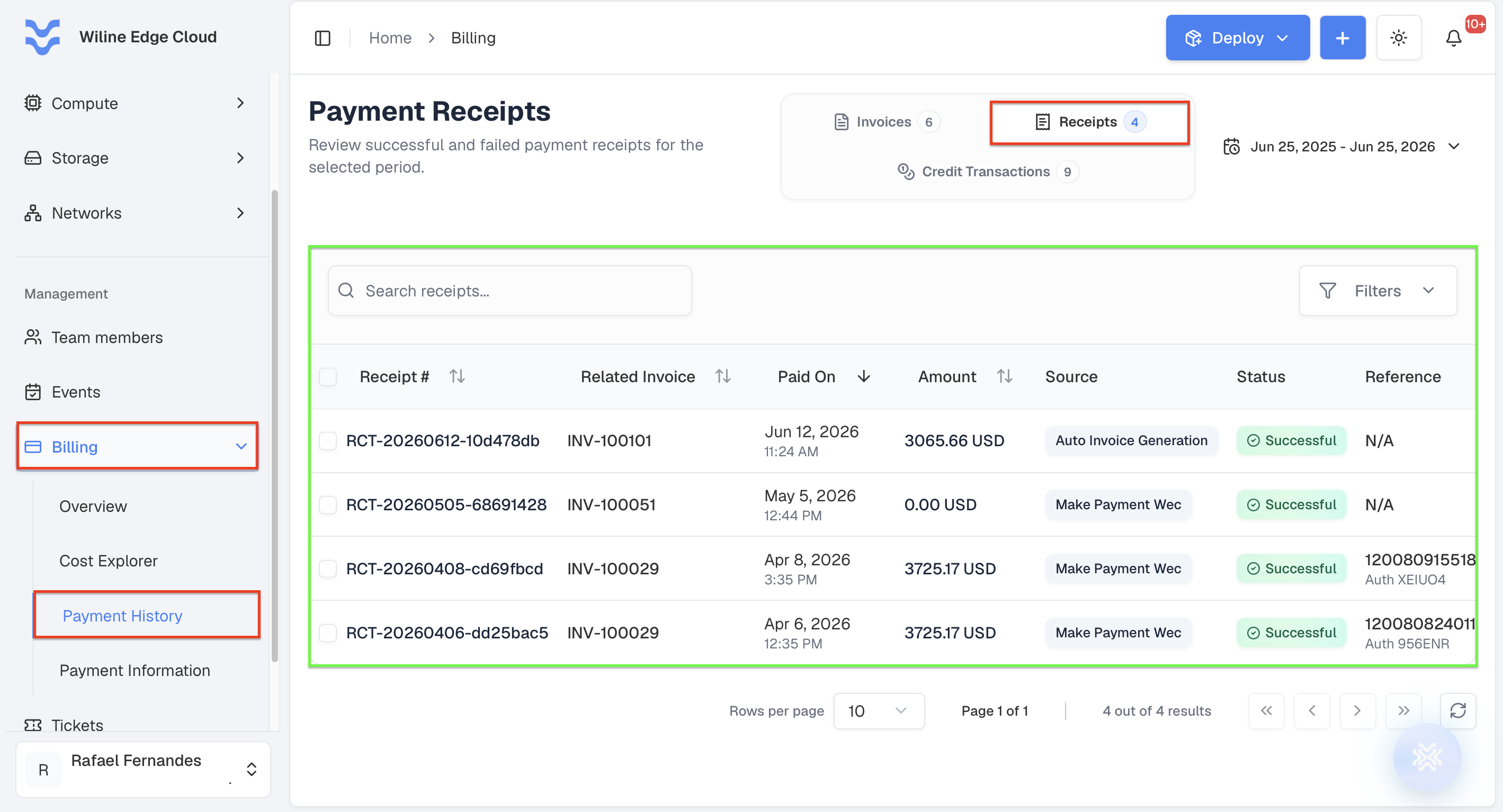
Figure 4: Receipt view showing payment details with options to view and download the PDF.
Example
- Receipt #:
RCT-20260612-10d478db - Related Invoice:
INV-100101 - Paid On:
Jun 12, 2026 — 11:24 AM - Amount:
$3,065.66 USD - Source:
Auto Invoice Generation - Status:
Successful - Reference:
N/A
Credit Transactions
All credit activity, including earnings, usage, and adjustments.
Columns include:
- Date — when the transaction occurred
- Description — what the credit was for (for example, a redeemed code, a manual adjustment, or an applied billing statement)
- Amount — the credit change, prefixed with
+(earned) or-(used) - Balance Before — credit balance before the transaction
- Balance After — credit balance after the transaction
- Type —
EarnedorUsed - Created By — the user or system process that created the transaction
- Expires — the credit expiry date, when applicable
This table is informational and does not include actions.
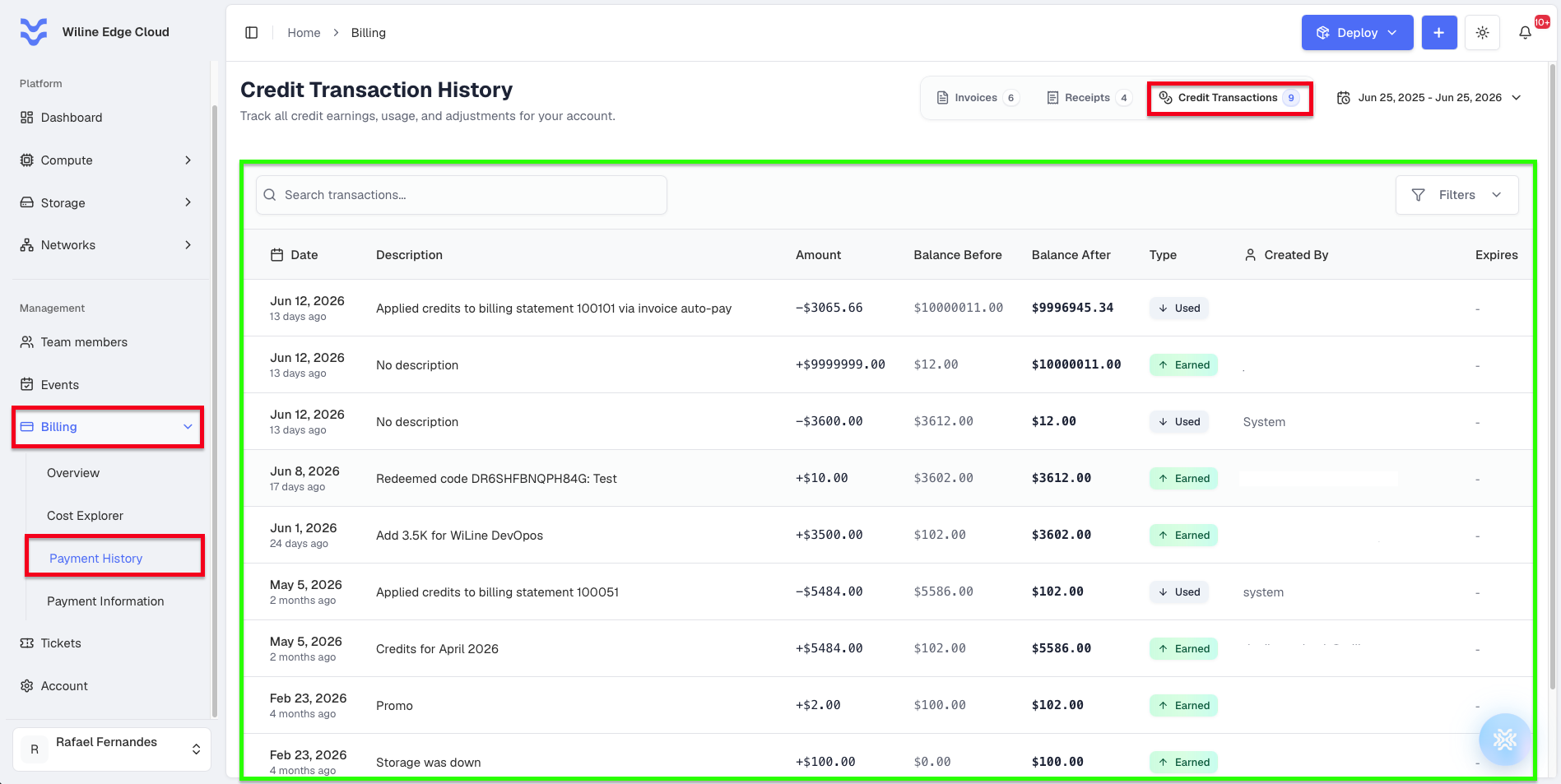
Figure 5: Credit transactions view showing credit history, balances, and adjustments.
A typical credit history looks like this:
| Date | Description | Amount | Balance Before | Balance After | Type | Created By |
|---|---|---|---|---|---|---|
| Jun 12, 2026 | Applied credits to billing statement 100101 via invoice auto-pay | -$3,065.66 | $10,000,011.00 | $9,996,945.34 | Used | invoice_generation_scheduler |
| Jun 12, 2026 | No description | +$9,999,999.00 | $12.00 | $10,000,011.00 | Earned | [email protected] |
| Jun 8, 2026 | Redeemed code DR6SHFBNQPH84G: Test | +$10.00 | $3,602.00 | $3,612.00 | Earned | [email protected] |
| Jun 1, 2026 | Add 3.5K for WiLine DevOps | +$3,500.00 | $102.00 | $3,602.00 | Earned | [email protected] |
| May 5, 2026 | Applied credits to billing statement 100051 | -$5,484.00 | $5,586.00 | $102.00 | Used | system |
| May 5, 2026 | Credits for April 2026 | +$5,484.00 | $102.00 | $5,586.00 | Earned | [email protected] |
| Feb 23, 2026 | Promo | +$2.00 | $100.00 | $102.00 | Earned | [email protected] |
Example
- Date:
Jun 8, 2026 - Description:
Redeemed code DR6SHFBNQPH84G: Test - Amount:
+$10.00 - Balance Before:
$3,602.00 - Balance After:
$3,612.00 - Type:
Earned - Created By:
[email protected] - Expires:
-
Filter and Customize the Table
Use filters and column settings to refine the records shown in the table.
Status Filter
Click Filters to filter records by status:
OngoingPaidPendingOverdue
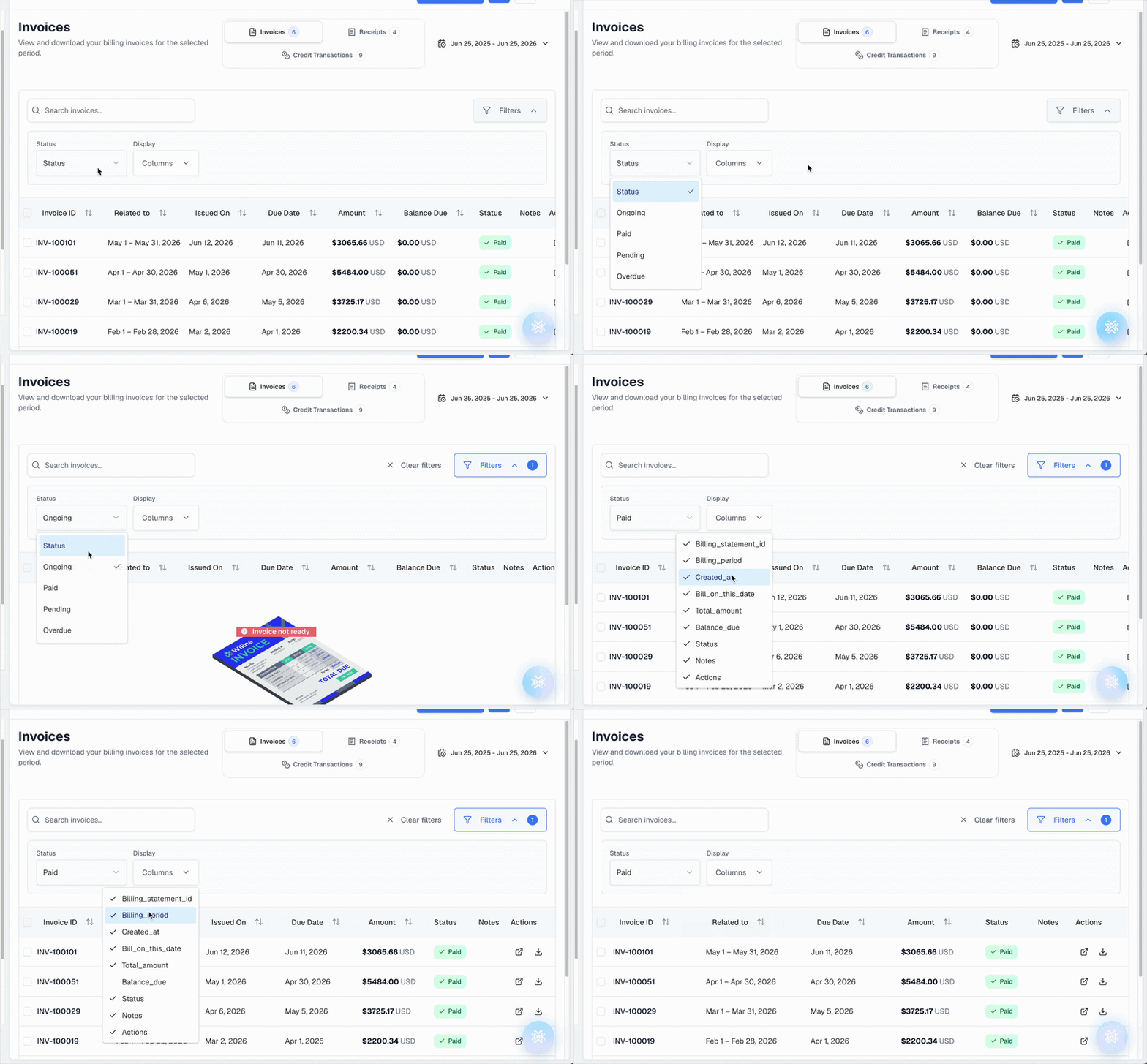
Figure 6: Filtering records by status.
This helps you quickly identify unpaid or in-progress transactions.
Display (Columns)
Columns vary by record type (Invoices, Receipts, or Credits). Use this option to show or hide columns based on what you need to analyze.
For example, the Invoices view exposes the following columns:
Billing_statement_idBilling_periodCreated_atBill_on_this_dateTotal_amountBalance_dueStatusNotesActions
Sorting
Click on column headers (e.g., Invoice ID, Issued On, Amount) to sort results in ascending or descending order.
Key Benefits
The Payment History page allows you to:
- Maintain full visibility into billing activity
- Track payments and outstanding balances
- Monitor credit usage and adjustments
- Export and manage financial records
Related
- See Billing Overview for a high-level summary of usage and invoices
- Use Cost Explorer to analyze spending patterns and optimize costs